Keymaps
Everything about keymapping: what it is, how it works, the best layouts, the mistakes to avoid and how to import our tested configuration.
1. What is keymapping?
Keymapping is one of the most searched topics among mobile gamers. On this page, we explain keymapping in simple language, step by step, so complete beginners can easily follow along while experienced players can still learn something useful. Everything shared here is based on real-world testing by the Mobilador X team.
The simple definition. Keymapping is simply the process of assigning different keyboard or mouse buttons to specific actions in a game. It allows you to decide which button should perform actions like moving, aiming, shooting, jumping, or crouching. In simple terms, keymapping helps you customize the controls so you can play a mobile game using a keyboard and mouse.
Why a keymapping app is needed.Games like Free Fire and PUBG Mobile are designed mainly for touch controls on smartphones. On PC, players can use emulators such as BlueStacks 5, GameLoop, LDPlayer, and others. On mobile, however, games are normally controlled using touch-screen controls. If you want to use a keyboard and mouse for a more PC-style gaming experience on mobile, you need a keymapping app. A keymapping app allows you to assign keyboard and mouse controls to different in-game actions. This makes it possible to play supported mobile games with keyboard and mouse controls directly on your mobile device.
Who should use it. Anyone who don't have tight budget to buy a gaming pc, can use it.
If you face any problem while following this guide, don’t worry. If you have any questions or doubts, feel free to contact us. If you are stuck at any step, reach out to our team and we’ll be happy to help. Contact us at contactmobiladorx01@gmail.com.
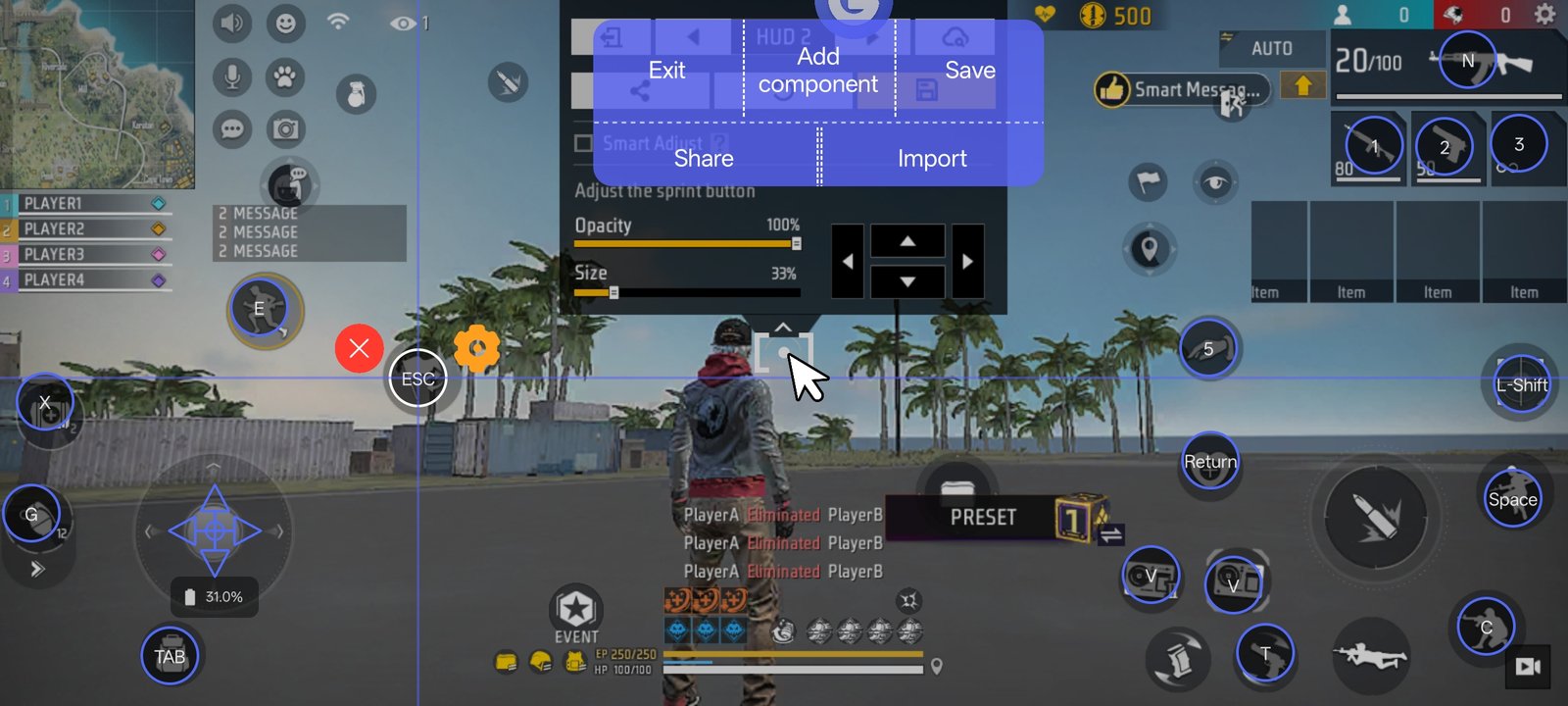
2. How keymapping works
Keymapping works by connecting your keyboard and mouse controls with the touch controls of a mobile game. The keymapping app lets you assign different buttons to specific actions in the game. When you press a key or click the mouse, the app converts that input into the corresponding touch action. This allows you to control the game with a keyboard and mouse instead of using your fingers.
3. Best keymapping layout
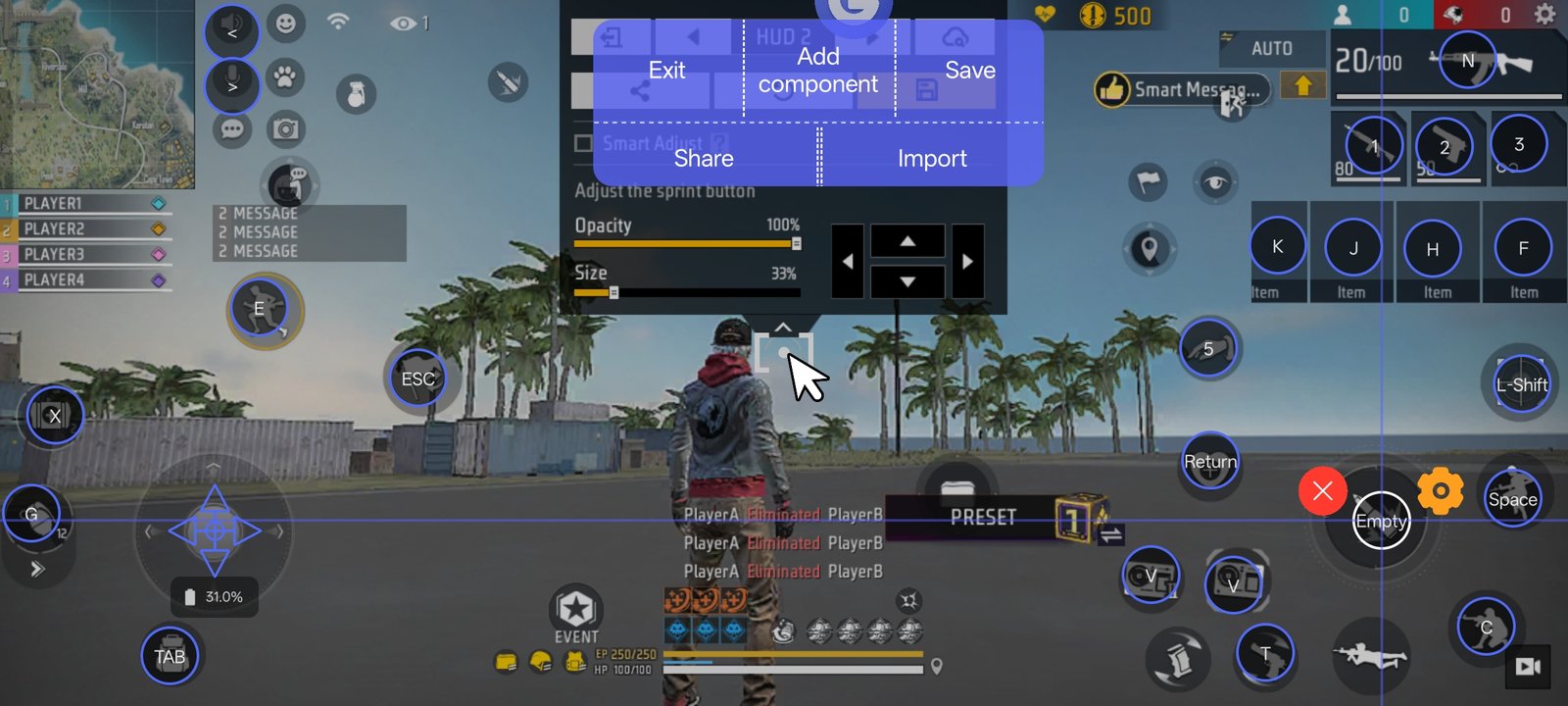
A good keymapping layout should be simple, comfortable, and easy to use during gameplay. The controls should be placed in a way that lets you perform important actions quickly without making the setup confusing. Using well-configured macros can also make certain actions faster and smoother, helping you maintain better control during gameplay. The main goal is to create a layout that feels natural, responds quickly, and is easy to remember. For a complete step-by-step setup, check our Tutorial.
Movement.If you are playing Free Fire, PUBG, or any game with joystick controls, using WASD for movement is a simple and effective choice. It makes movement easier to control and helps you move quickly during gameplay.
Sizing.While setting up keymapping for Free Fire, PUBG, or similar games, you can adjust the size of each button or HUD element according to your preference. However, keeping the buttons slightly smaller than their default size can help keep the screen clean while still making the controls easy to use.
Testing. Always test in a training range first. Fire, reload, scope, jump, crouch, open the inventory and drive a vehicle. Fixing a wrong bind in a real match costs you the match.
4. Common keymapping mistakes
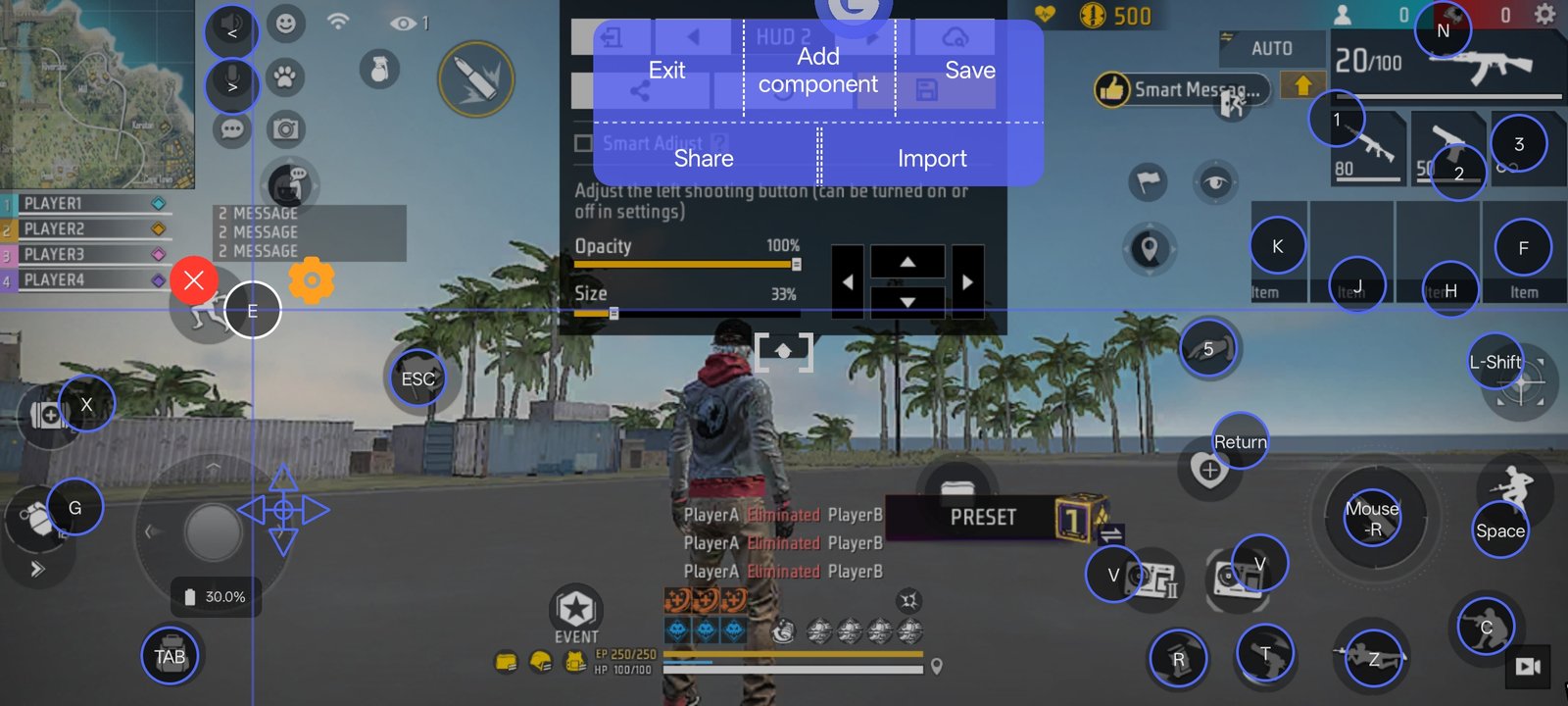
A good keymapping setup can make gameplay smoother, but small mistakes can affect your controls and overall experience. Poorly placed buttons, uncomfortable key positions, or incorrect settings can make gameplay harder. Taking a little time to adjust and test your layout can make a big difference. Here are some common keymapping mistakes to avoid for better and more comfortable gameplay
Forgetting activation. Forgetting Activation: If your keymapping does not work when you press a key, first check whether the keymapping app is properly activated. An incomplete activation can prevent the controls from working correctly.
Overlapping controls. If your keymapping is not working properly, check whether any controls are overlapping. Make sure each key is assigned separately and the controls are placed clearly so they can work correctly.
Sensitivity set too high. Very high sensitivity in the game or keymapping app can make your controls difficult to manage. Keep both sensitivities balanced and adjust them slightly up or down until you find a setting that feels comfortable and easy to control.
Not saving the keymapping. Most keymapping apps do not automatically save your settings. Always save your keymapping before starting a game to avoid losing your setup.
5. Import keymapping
Follow these simple steps to import your GG Mouse Pro keymapping and set up your controls for gameplay. The process is quick and easy to follow..
Watch tutorial →
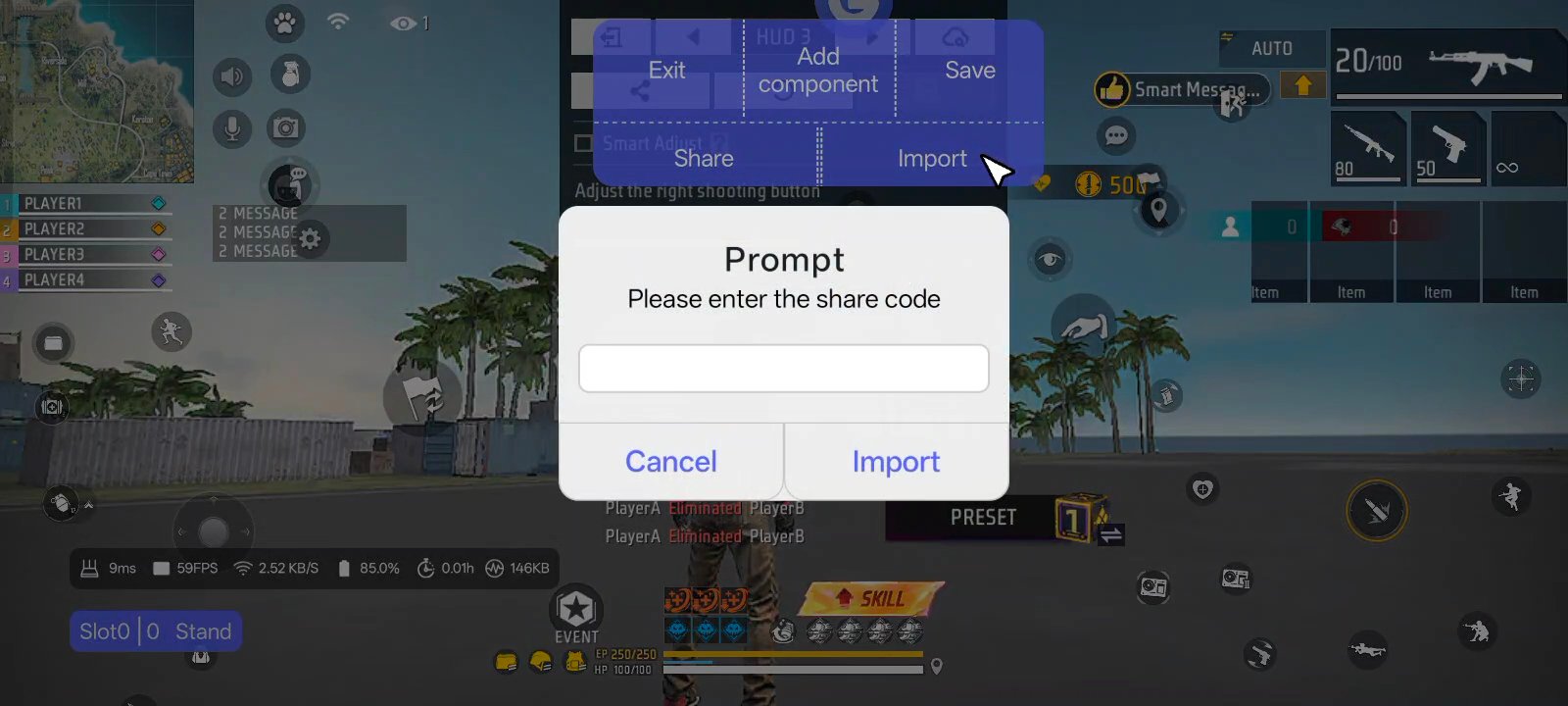
How to apply
Step by Step Guide to Import GG Mouse Pro Keymapping.
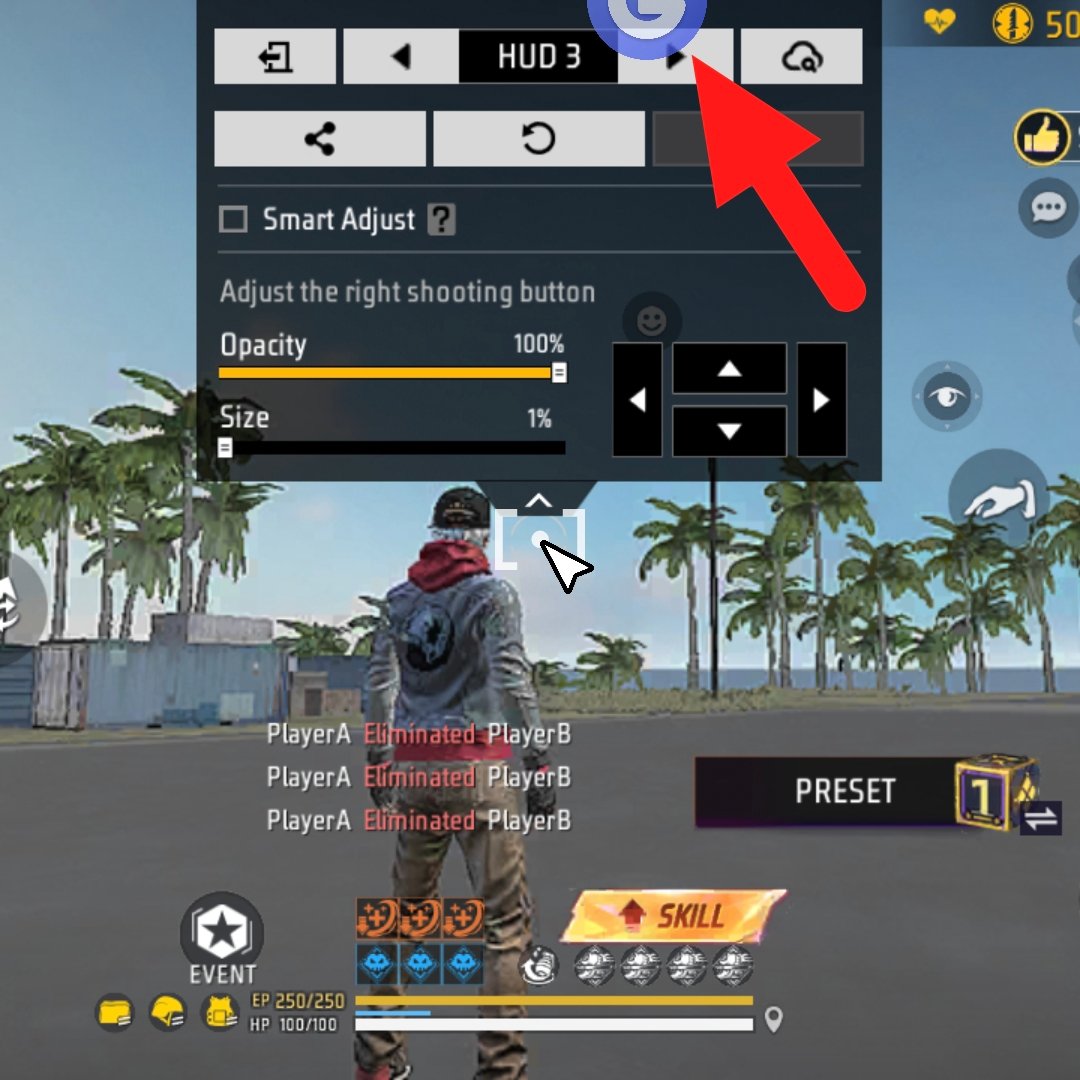
Tap the GG Mouse Pro 3 icon to open the app and import your keymap.
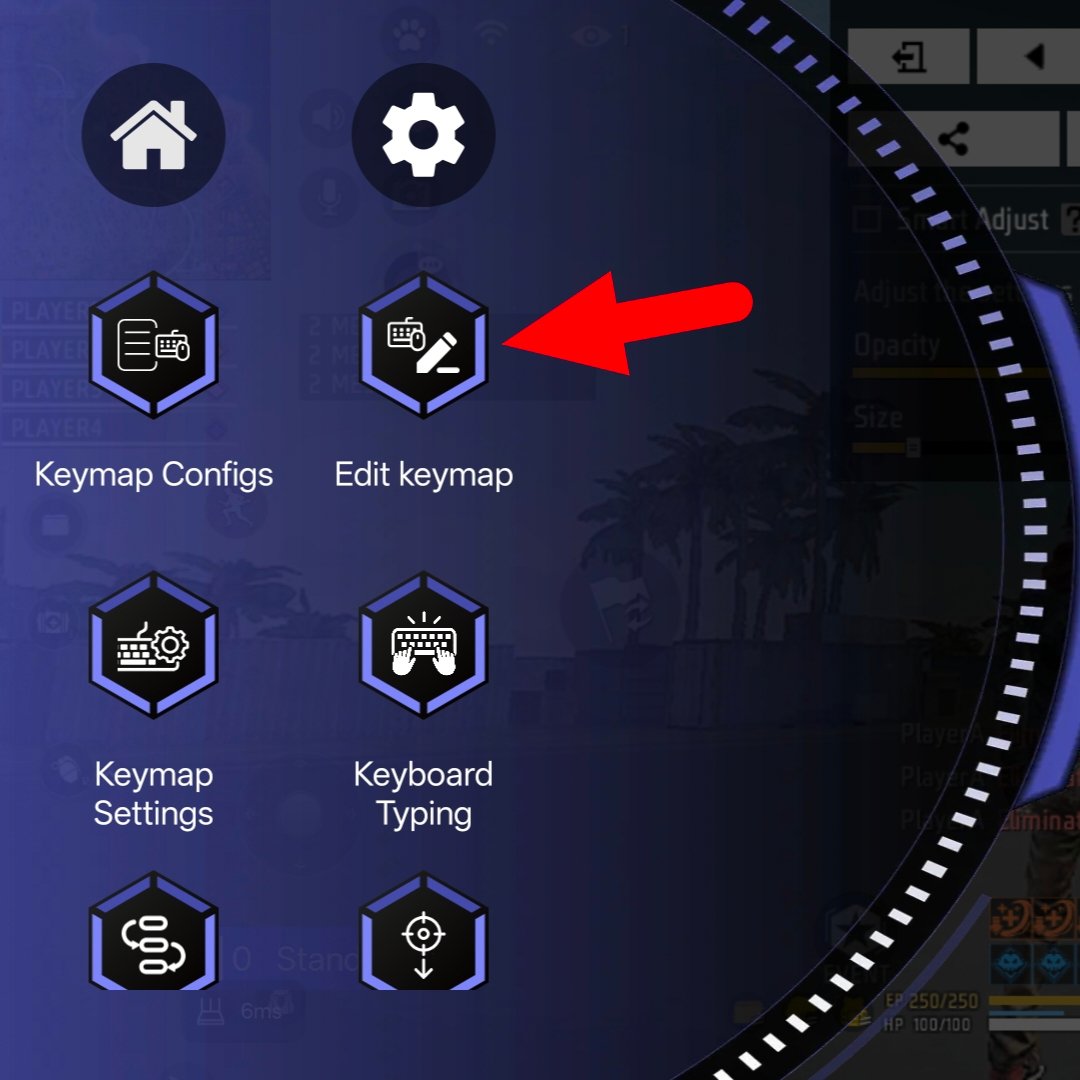
Tap “Edit Keymap” to open the keymapping settings and continue with the setup.
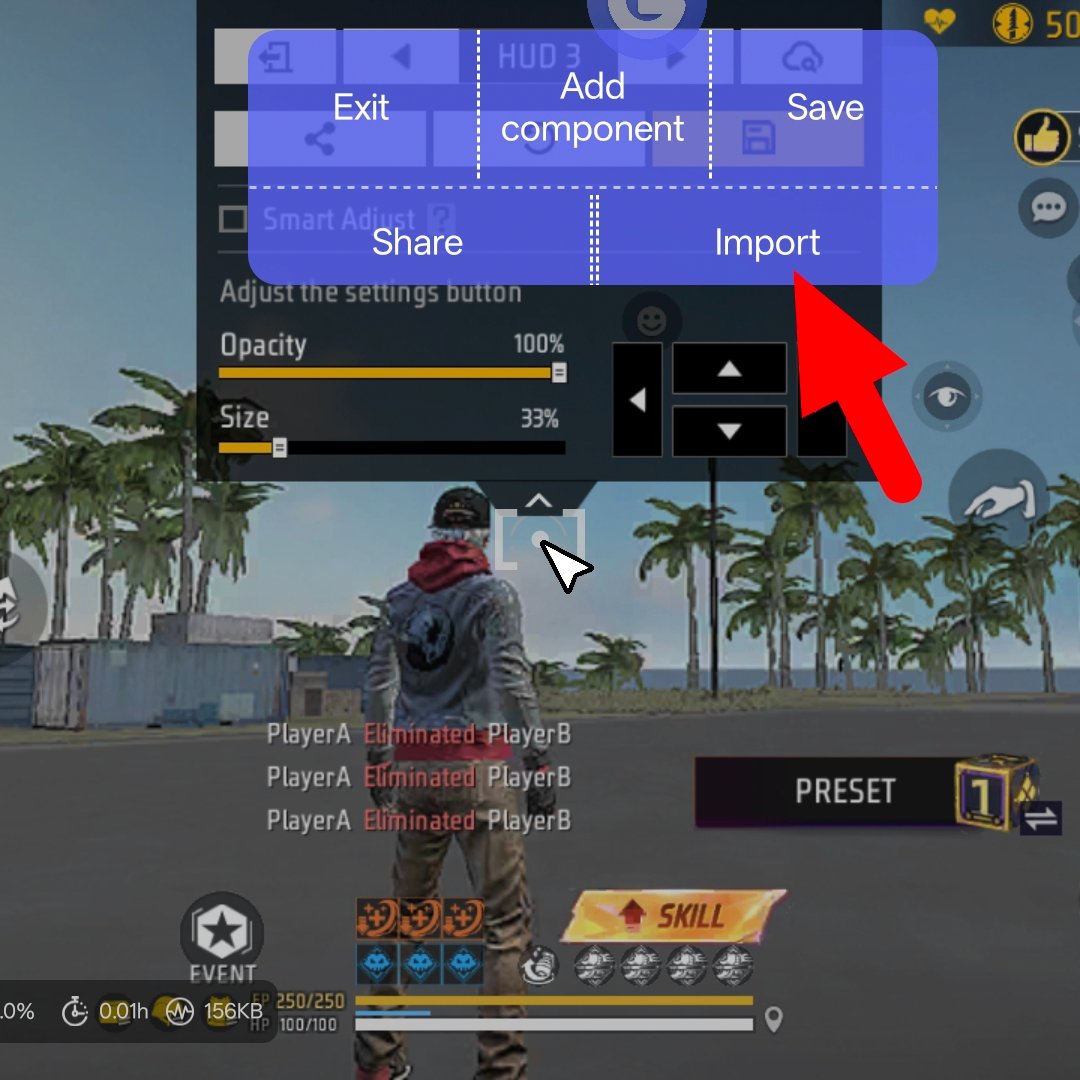
Tap the “Import” button to select and import your keymapping file.
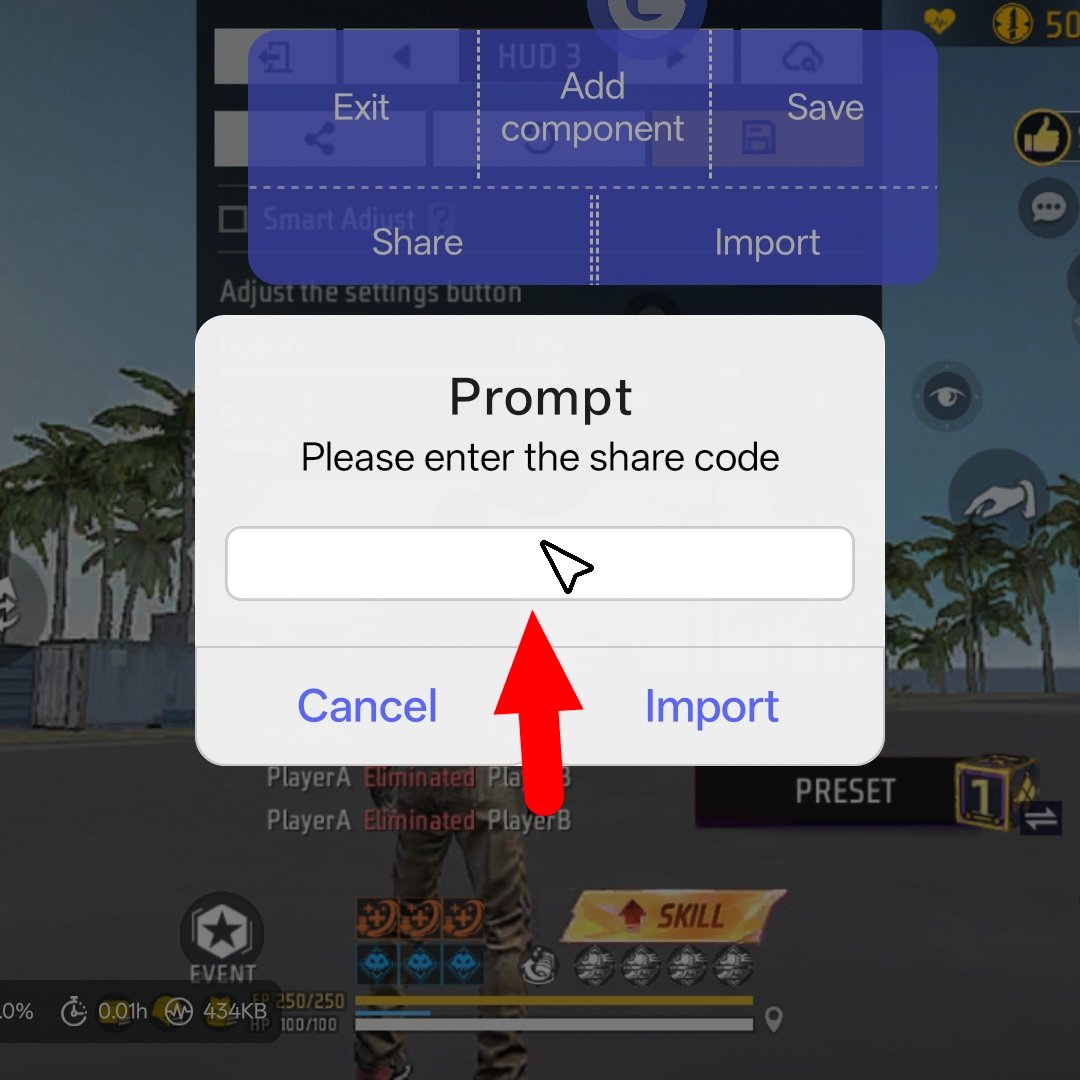
Tap “Import” to import the copied keymapping and apply it to your setup.
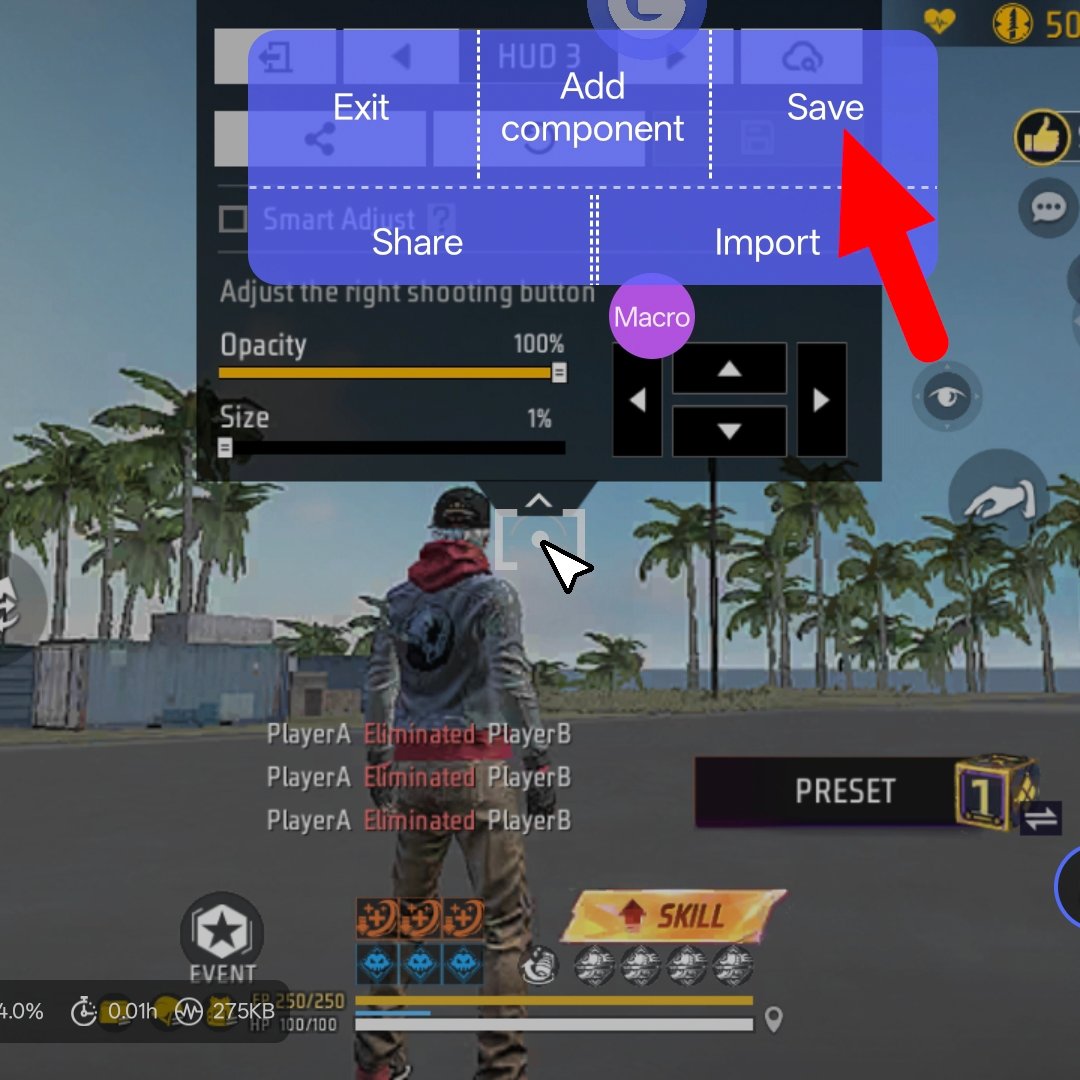
Save your keymapping settings and start playing with your a new gaming journey.
Update guide
Keeping your keymap working after a game or app update can sometimes require a few extra steps. Updates may change settings or reset your saved controls, so it’s important to check your keymap after every update. In this guide, we’ll explain the simple steps you can follow to keep your keymap working properly.
After a game update. If the game buttons have moved, open the keymap editor and check the controls. Take a new screenshot and move any control that is not in the right place. After that, save the keymap and start playing.
After an app update. Sometimes an update can reset the app’s permissions. Simply activate the app again and check that your keymap profile is still selected.
Backups. Export your keymap as a code and save it somewhere safe. If your keymap gets lost, you can quickly import the code and restore your setup.
Troubleshooting keymaps
Having problems with your keymap? Don’t worry, most keymapping issues are easy to fix with a few simple checks. Here you’ll find solutions to some of the most common problems, along with easy steps to check your settings and get your keymap working properly again.
Keymaps do not work. If your activation has expired, activate the keymapping app again and test your controls to make sure everything is working properly.
Cursor visible but camera does not turn.Check the keymapping app and make sure the Cursor Hide/Show button is enabled. If it is disabled, enable it and test the cursor again.
Character walks by itself. This can happen when the joystick control is too large or placed incorrectly. Keep enough space around the joystick so it can move freely and does not get stuck. This will help your character controls work properly.
App closes in background. Turn off battery optimization for the keymapping app and lock the app in recent apps to help keep it running properly in the background.
Lag after long sessions. If the game starts lagging after playing for a long time, lower the graphics settings and let your phone cool down. Removing the phone case and taking a short break can also help.
Macro not working. Some keymapping apps require a premium plan for features like macros. If your subscription expires, these features may stop working properly. Check your subscription status and renew it if needed.
Keyboard & Mouse not working. Sometimes the keyboard or mouse may stop working while you are playing. Just unplug them from the USB hub and plug them back in. If that still doesn’t work, remove the OTG, close the keymapping app, disconnect everything, and connect it again from the start.
We wish you all the best on your gaming journey and hope you have a great experience with Mobilador X. If you ever need help, have any questions, or face any issues with anything, Mobilador X is always here to support you. Feel free to contact us anytime at contactmobiladorx01@gmail.com.
Both codes are available here: one for the GG Mouse Pro keymapping and one for the keymapping HUD. Simply copy the code, import it into your game, and start your new gaming journey with Mobilador X!
Keymap code
mkmyqjh97i2
HUD code
#FFHUDT603jkVazvBPo7eM