Activation
What is activation?
Activation is the process that allows a keymapping app to work properly in the background on an Android device. It gives the app the required access to stay active while you are playing a game. Once activated, the app can handle your keyboard and mouse inputs and connect them with the supported game controls. This allows you to use a keyboard and mouse while playing Android games instead of relying only on touch controls. In simple words, activation helps the keymapping app stay connected and work correctly during gameplay, so your keymapping can respond properly whenever you press a key or use the mouse.
The short answer. Activation allows a keymapping app to stay active in the background and work properly during gameplay. It helps connect keyboard and mouse inputs with supported Android games for a PC-style gaming experience.
Many Ways of Activation. There are several ways to activate keymapping apps, depending on the app and setup you are using. Popular options include GG Mouse Pro and K2er, with methods such as PC activation, phone-to-phone activation, and wireless activation. GG Mouse Pro also supports Shizuku activation, giving users another option for setting up keymapping on Android.
Activation supports both GG Mouse Pro and K2er.
Note: Activation methods can vary between GG Mouse Pro and K2er. Some methods may be available on both apps, while others may be supported by only one. Check the method that matches your app and setup.
PC Activation GG Mouse Pro and K2er both support PC activation, allowing users to activate their keymapping setup and start their mobile gaming journey with a more PC-style experience.
Phone to Phone Activation Phone-to-phone activation allows you to activate the keymapping app using another Android phone, without needing a PC. This method is supported by GG Mouse Pro, while K2er does not currently support phone-to-phone activation. Once activated, you can set up your keymapping and start your PC-style gaming journey on mobile.
Wireless Activation This activation method is supported by both GG Mouse Pro and K2er. It allows you to activate the app wirelessly by connecting the activation phone to the Wi-Fi of another phone, without using a USB cable.
Shizuku Activation Activation can also be done using the Shizuku app. This method is supported by both GG Mouse Pro and K2er, giving users another way to activate their keymapping app without a PC.
Why Activation needs to repeat Activation may need to be repeated after the phone is restarted or turned off. Changes to Developer Options or settings such as USB Debugging can also cause the keymapping app to lose its activation. When this happens, you need to activate the app again before starting the game.
Is it safe. Yes, the activation process is generally safe when you use the official keymapping app and follow the provided setup steps. It does not require rooting your phone or making permanent changes to your device. Use the app as intended and make sure your setup is suitable for the game you are going to play, such as Free Fire, PUBG, or other supported games etc.
Supported devices. eymapping and activation apps generally work best on Android 10 and above. Some features may also depend on the device and Android version, so Android 11, 12 and 12+ newer versions are recommended for a smoother setup.
If you have any questions about activation or face any issue during the setup, don’t worry. You can reach out to us for help with activation, keymapping, or any other related problem. We’ll do our best to guide you and help you get everything working properly.
GG Mouse Pro Wireless Activation
GG Mouse Pro Wireless Activation is one of the most popular ways to activate GG Mouse Pro because it is simple and does not require a USB cable. In this guide, you’ll learn how to complete the wireless activation using wireless debugging and get GG Mouse Pro ready for your gaming journey.
To activate GG Mouse Pro using Wireless Activation, follow the steps given below. Complete each step to finish the activation and get ready for your gaming journey.
The first step is to enable “Developer Options” in your device settings.
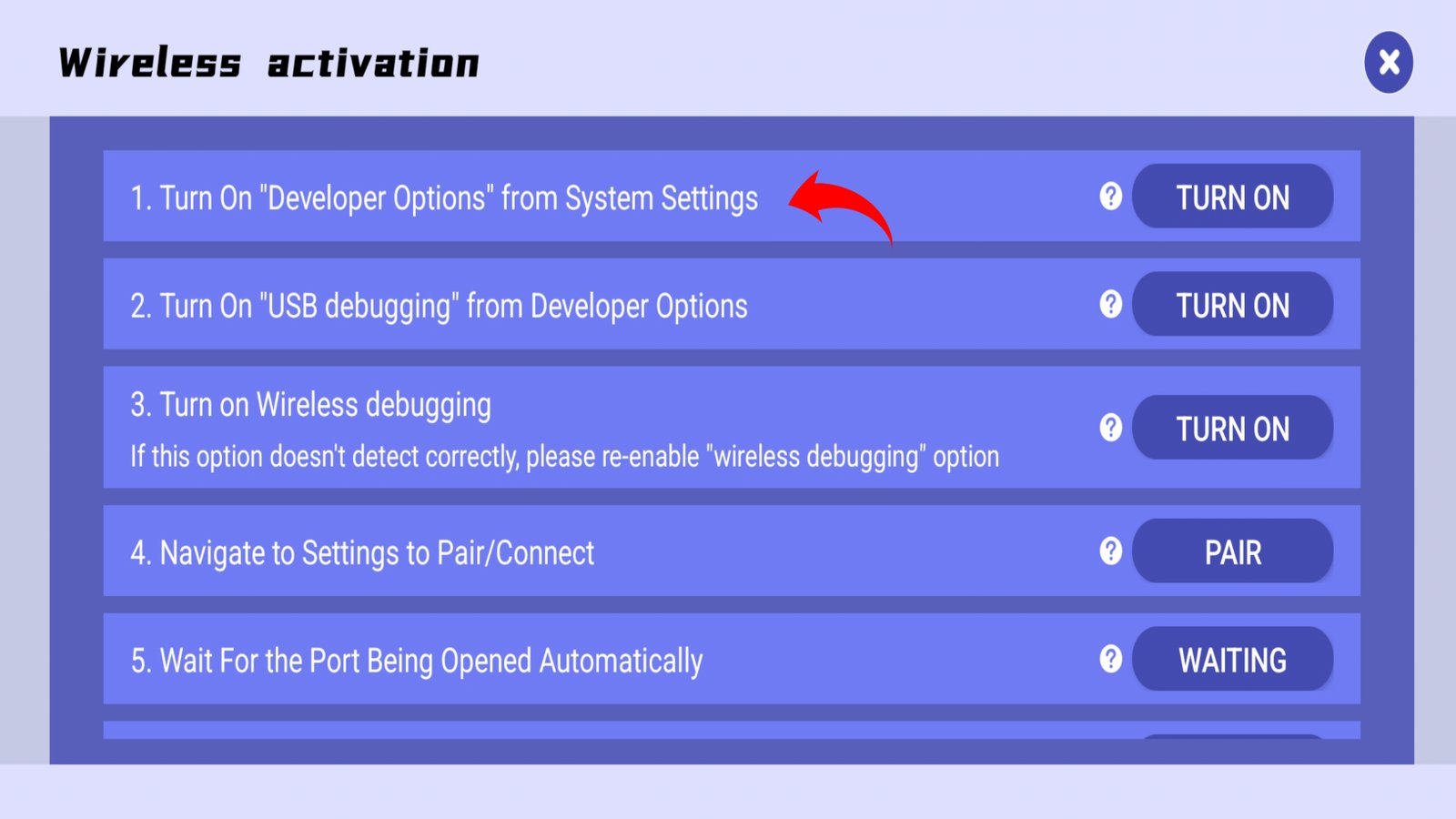
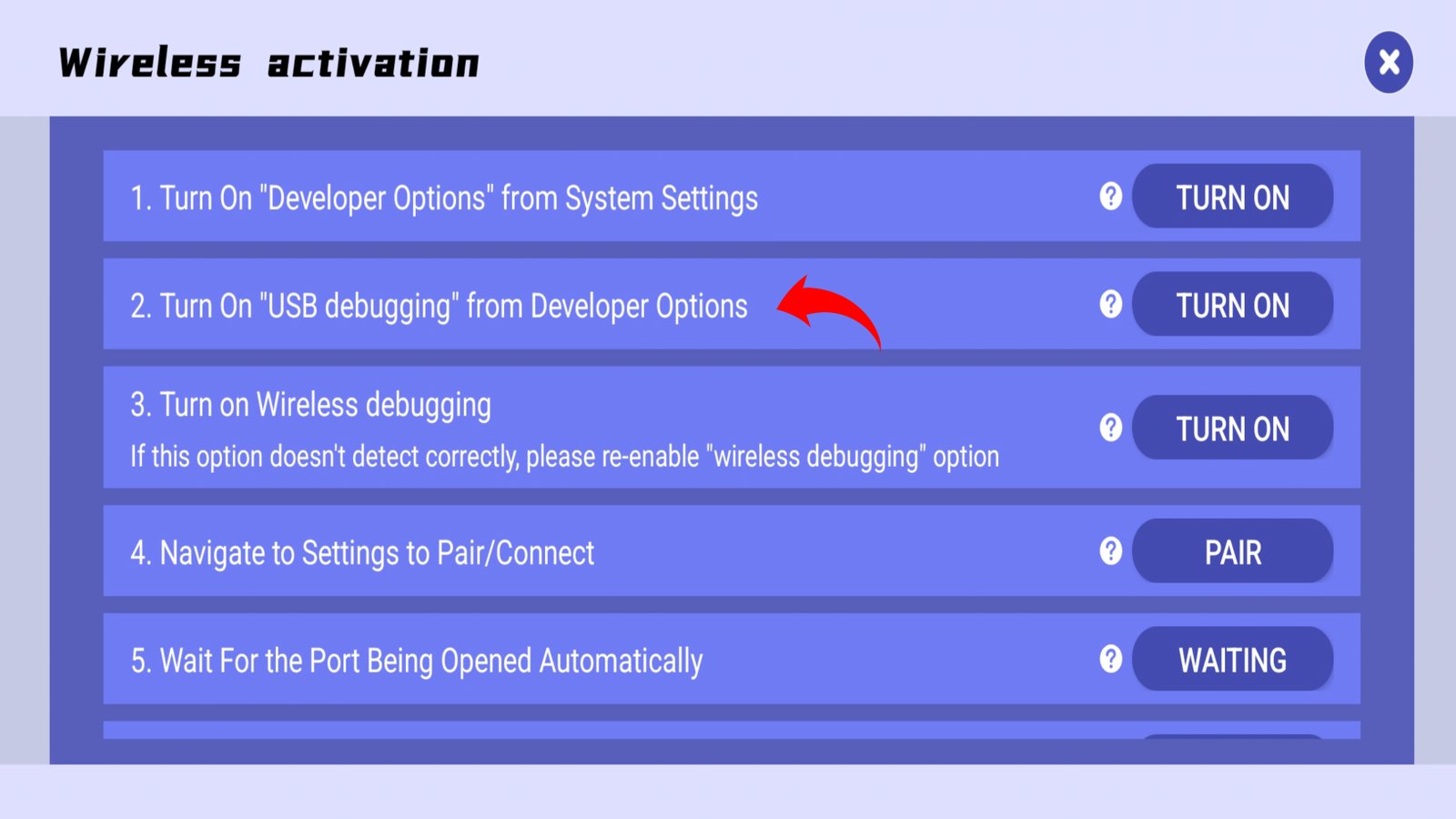
The second step is to enable “USB Debugging” from Developer Options.
 >
>
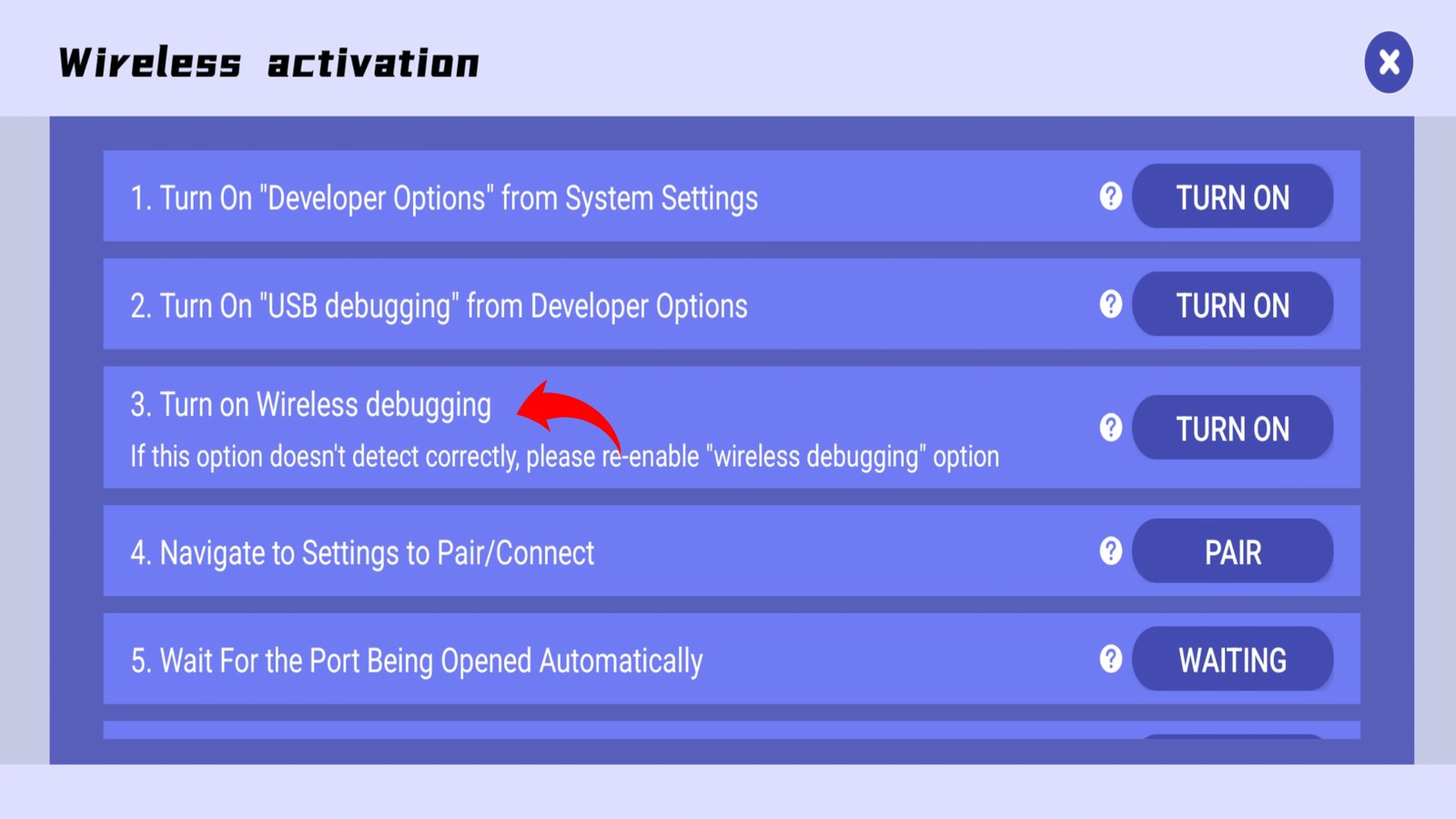
The next step is to enable “Wireless Debugging” from Developer Options. Note: This is the main step for wireless activation.
 >
>
The next step is to "pair/connect" from settings to enable notification.
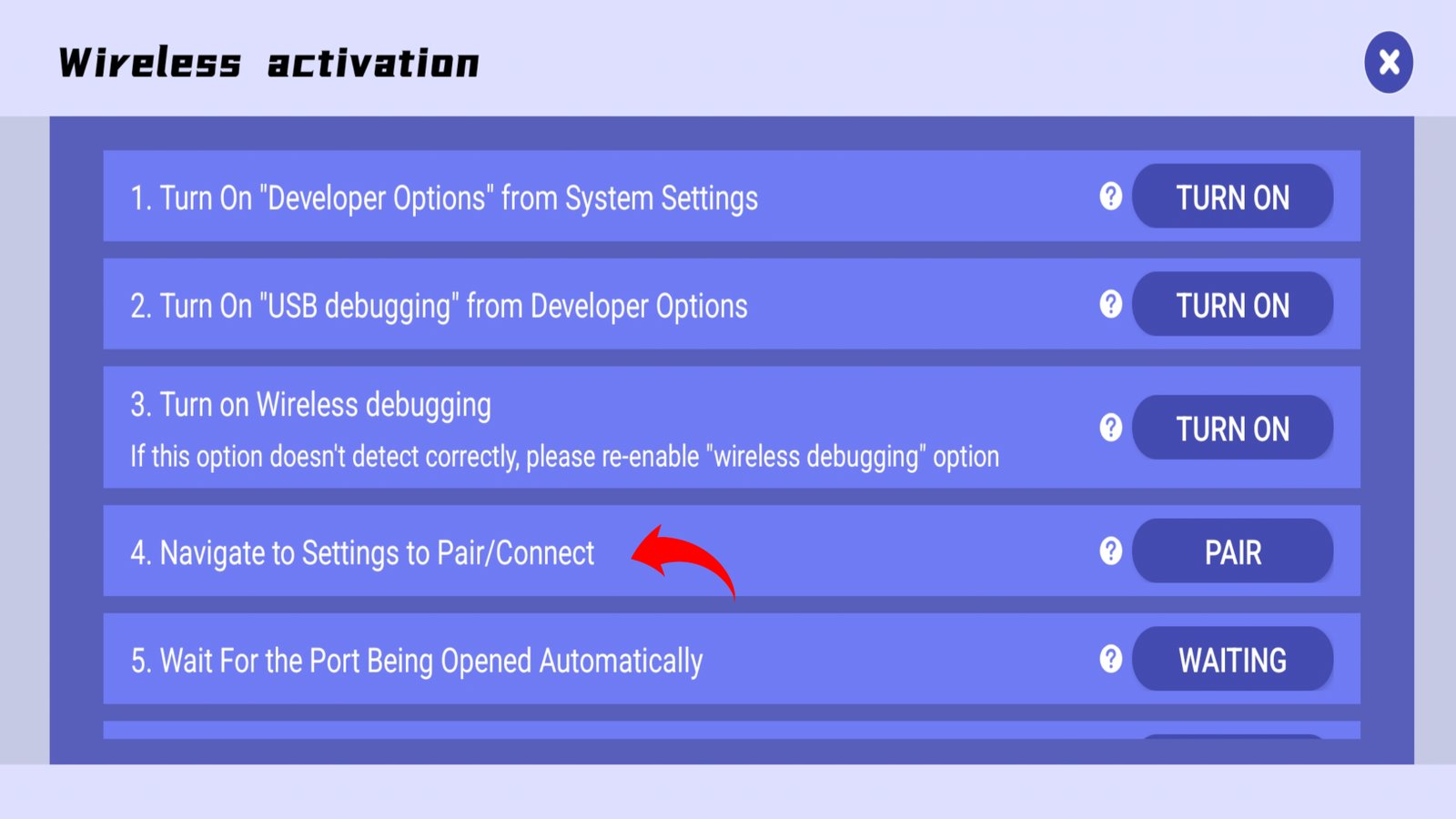
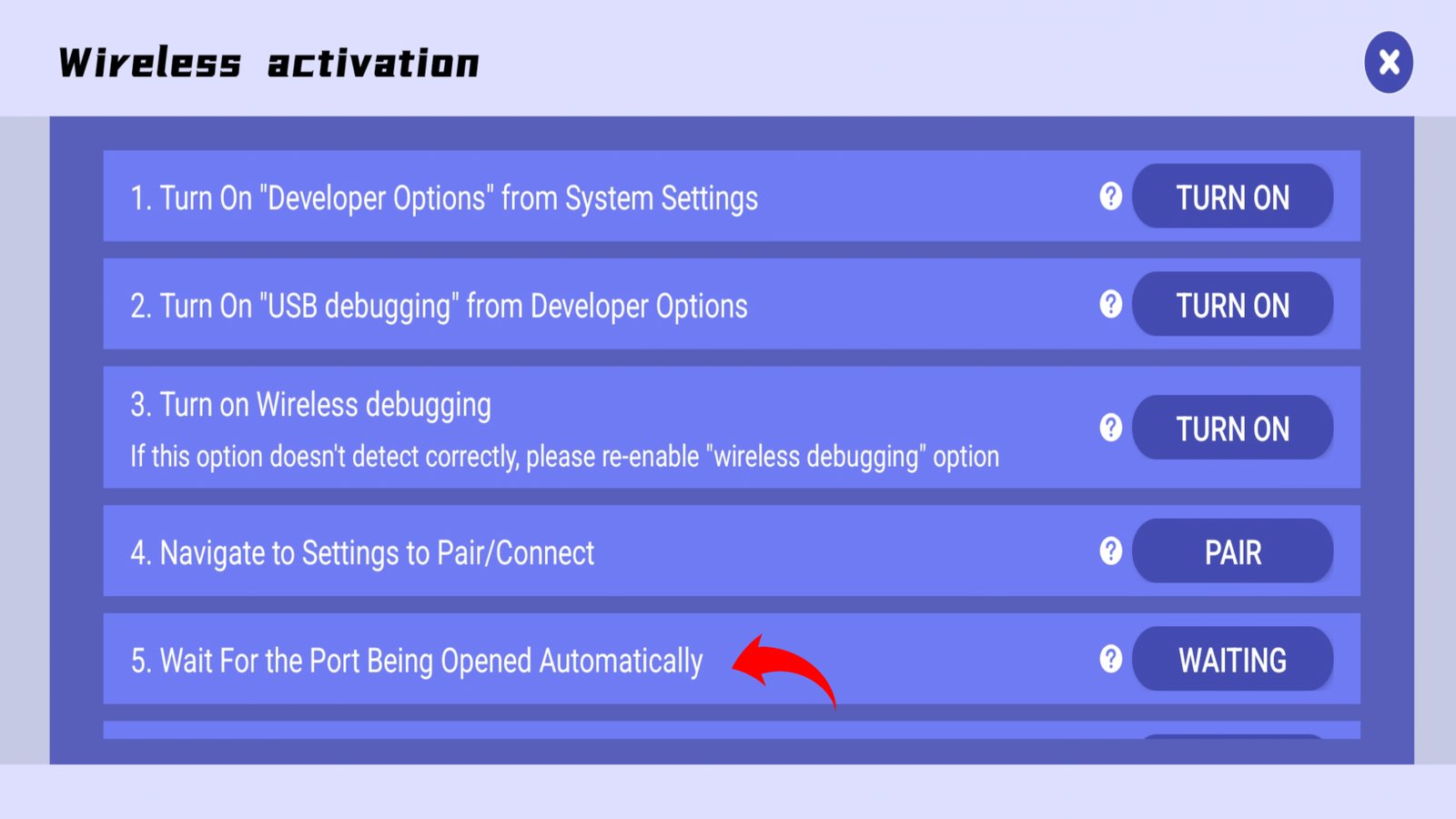
Next, tap “Pair” again and enter the pairing code to complete the GG Mouse Pro activation.
K2er Wireless Activation
K2er Wireless Activation is a simple and convenient way to activate K2er using Wireless Debugging. This guide explains the complete activation process in an easy way, starting from the required settings and ending with successful activation. Follow the steps to get K2er activated and ready for your gaming journey.
Some K2er activation steps are similar to the GG Mouse Pro activation process, especially when using Wireless Debugging. The overall setup is quite similar, with only a few steps differing between the two apps.
To activate K2er using Wireless Activation, follow the steps given below. Complete the required settings and activation process to get K2er ready for use
First, allow the Overlay Permission for K2er to continue with the activation process.
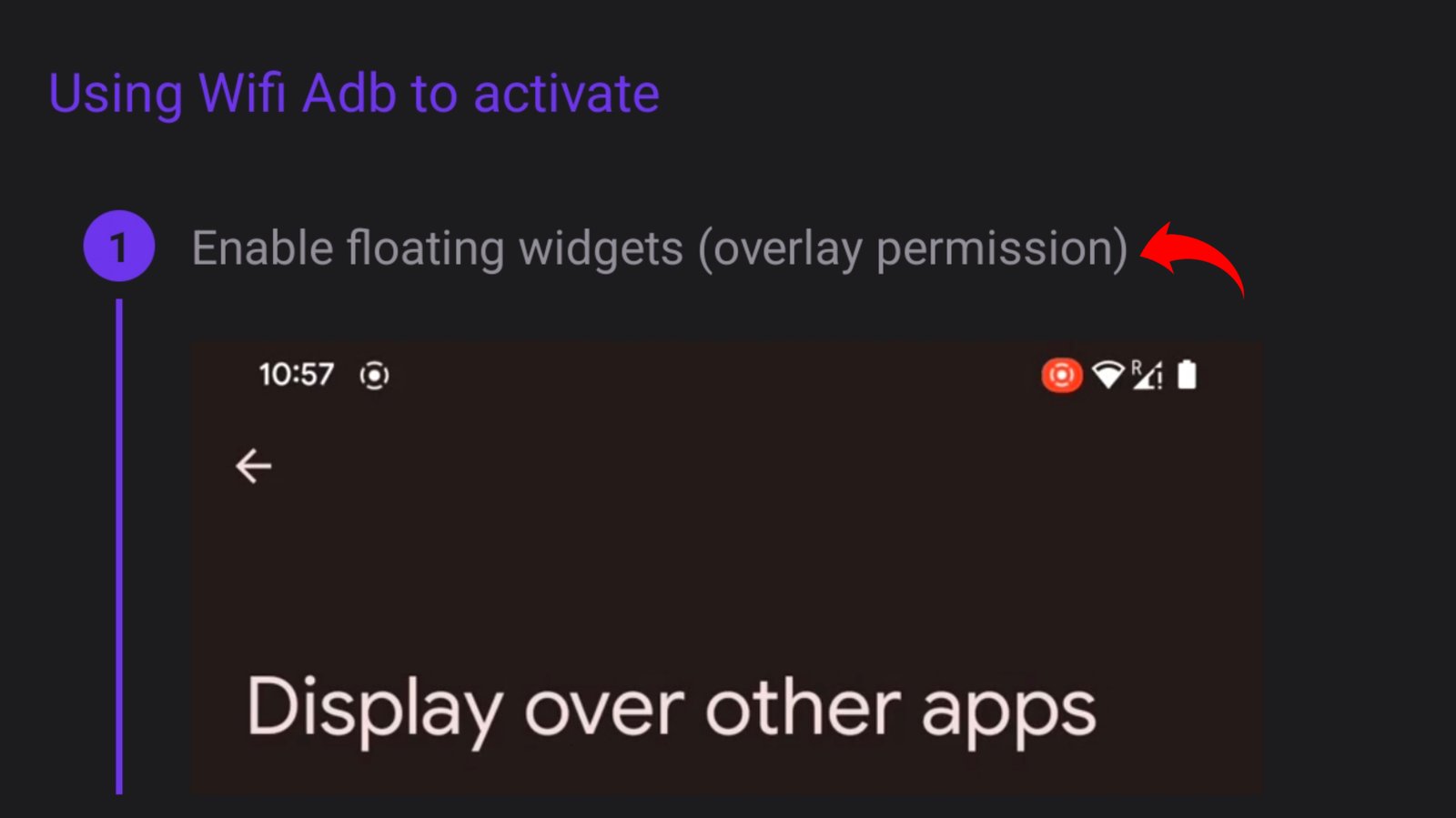
Enable “Developer Options” in your device settings.
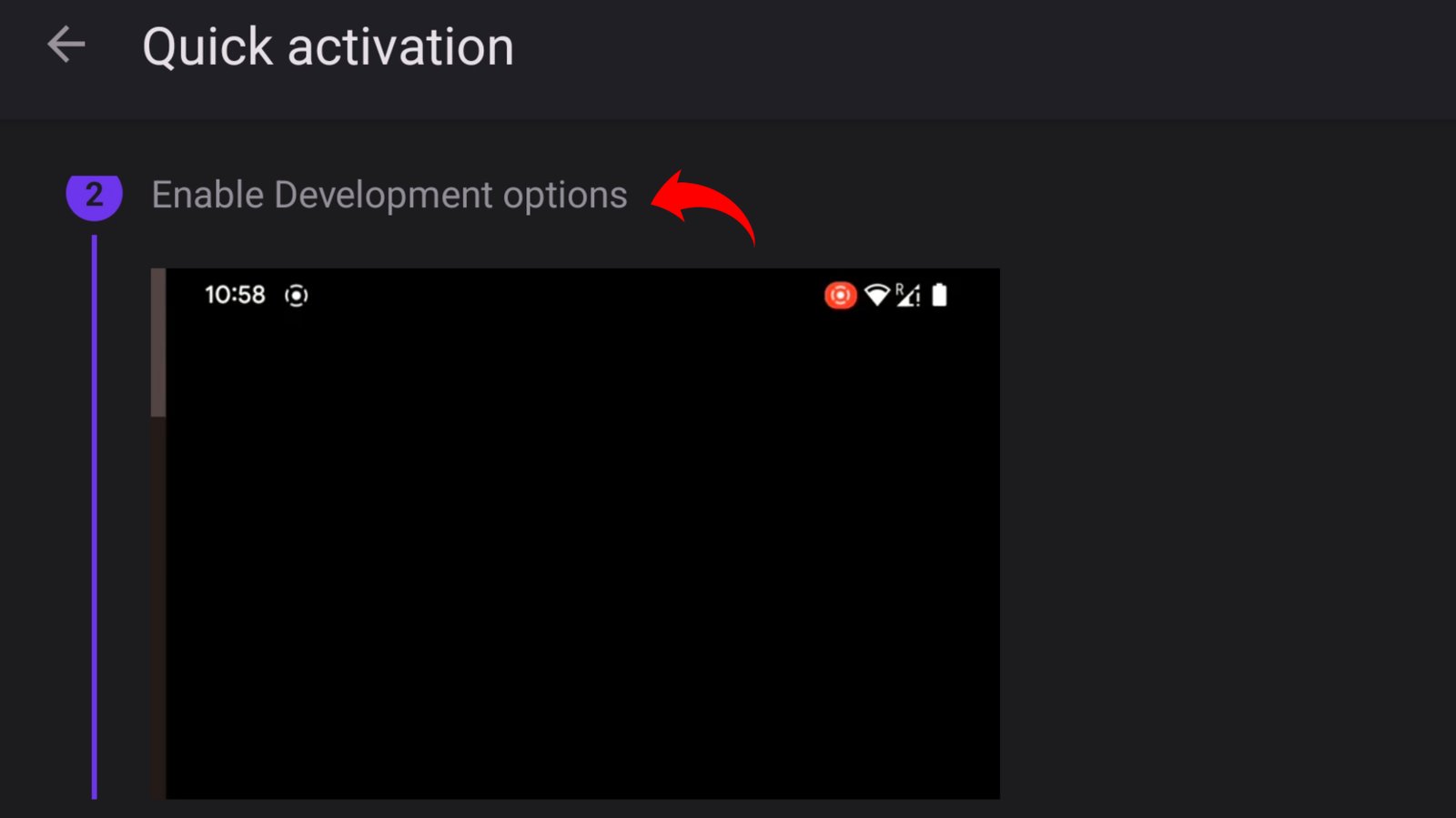
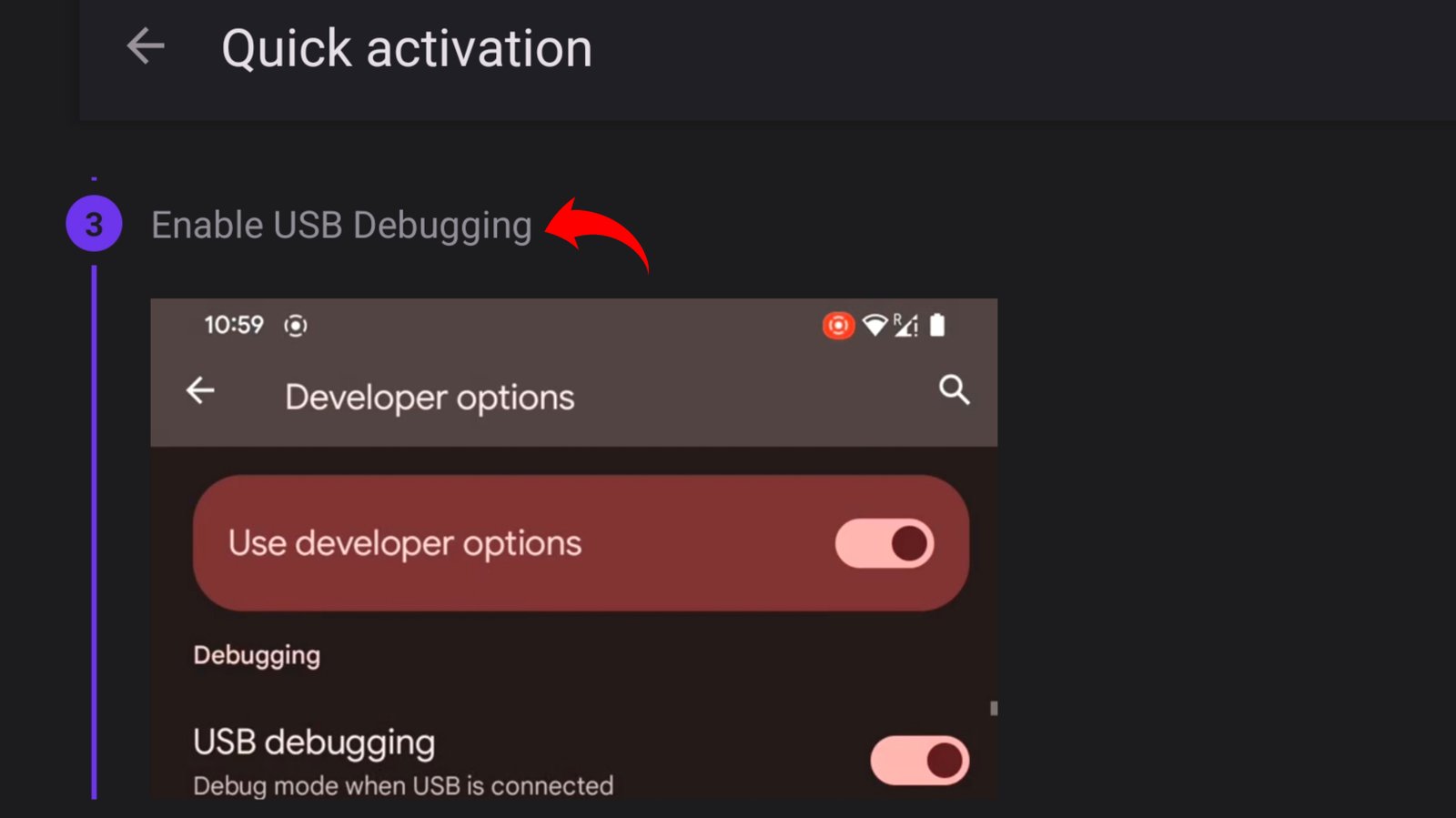
Enable “USB Debugging” from Developer Options to continue.
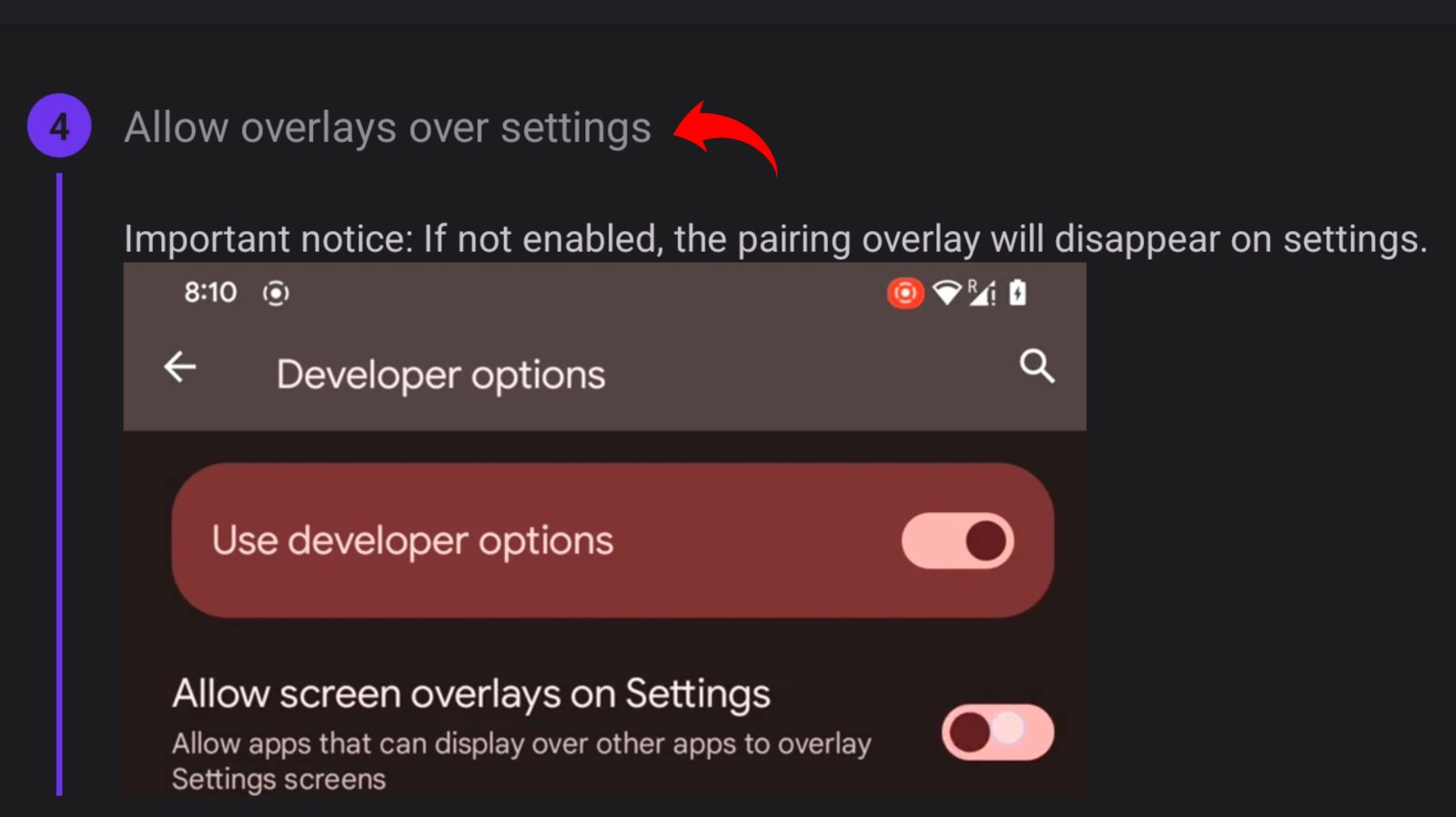
Enable “Allow overlay over Settings” to continue with the activation process.
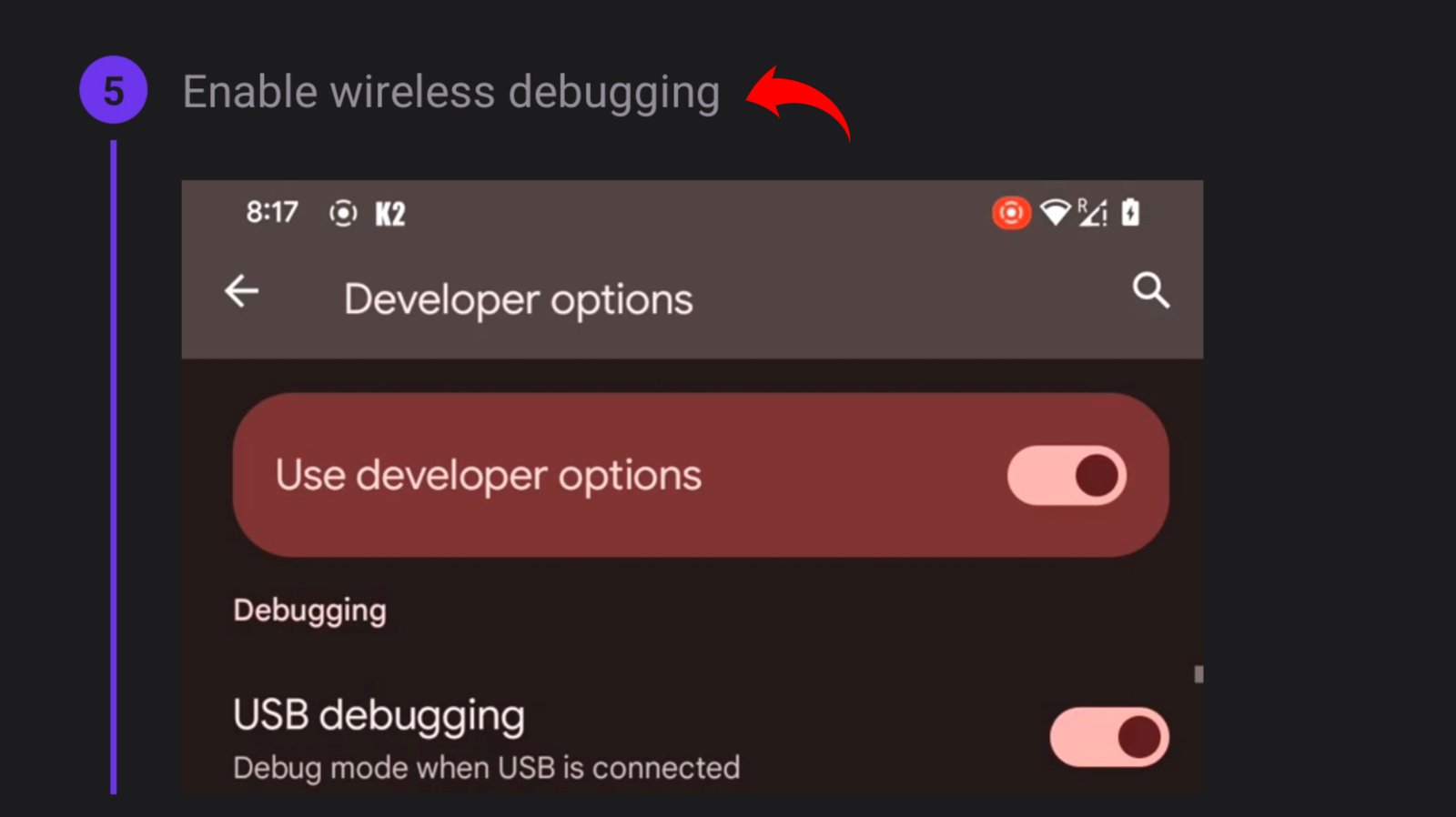
Enable “Wireless Debugging” from Developer Options.
Tap “Pair with pairing code” and enter the code to complete K2er activation.
Geek Gamer
Geek Gamer is a simple keymapping app made for mobile gaming. It lets you use a keyboard and mouse with supported Android games. The app is easy to set up and use for everyday gameplay. To use Geek Gamer, you need a Mix Pro Converter setup. After connecting everything, you can set up your keymapping. Adjust the controls according to your preference and start playing. It’s a simple way to enjoy a more PC-style gaming experience on mobile.
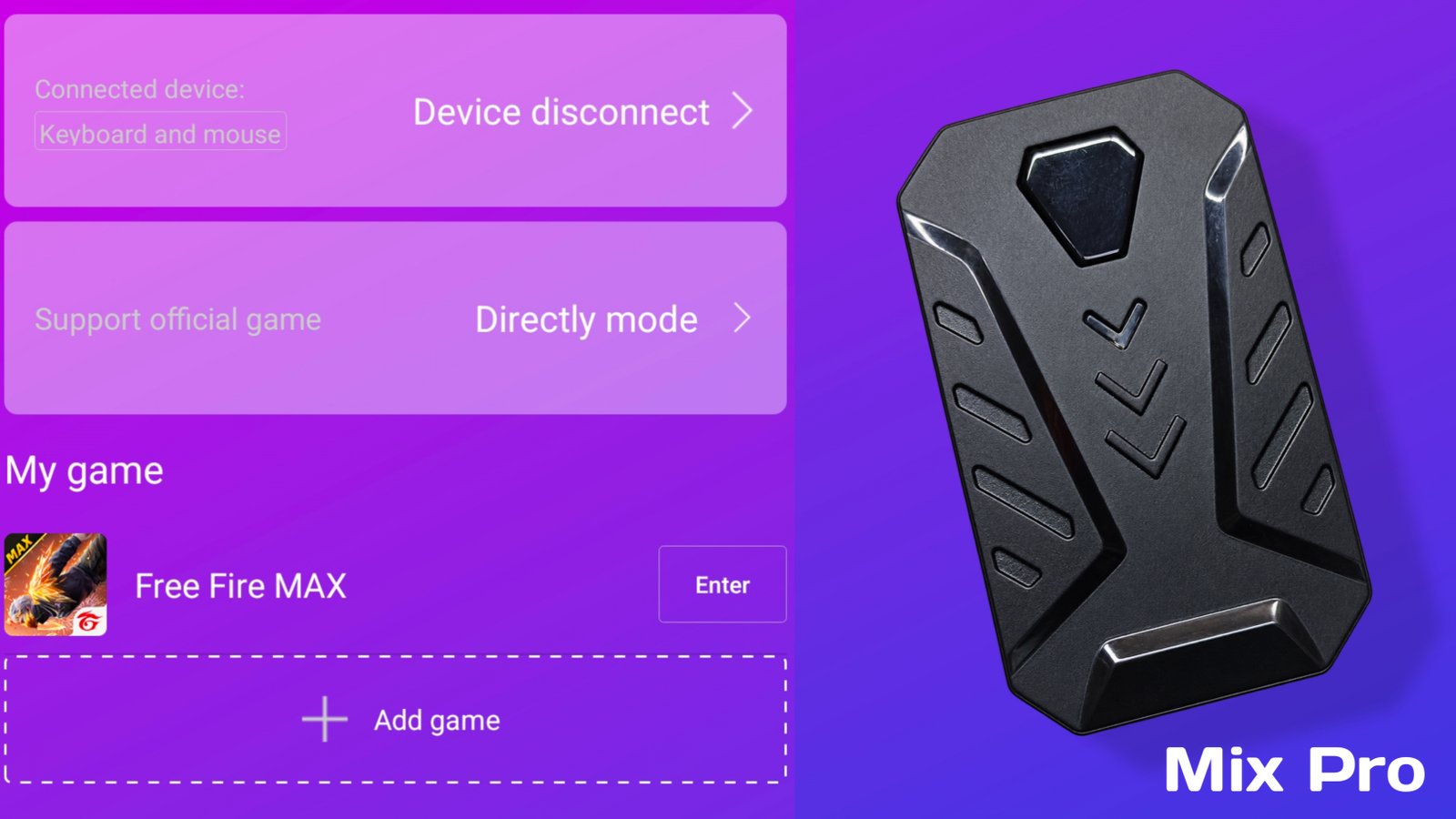
MooWii Gaming
MooWii Gaming is a simple keymapping app made for mobile gaming. It allows you to use keyboard and mouse controls with supported Android games. The app provides an easy way to create and manage your keymapping setup. You can adjust your settings according to your preferred gameplay style. MooWii Gaming does not require any subscription to use its keymapping features. To use this app, you need a Mix Pro Converter setup.
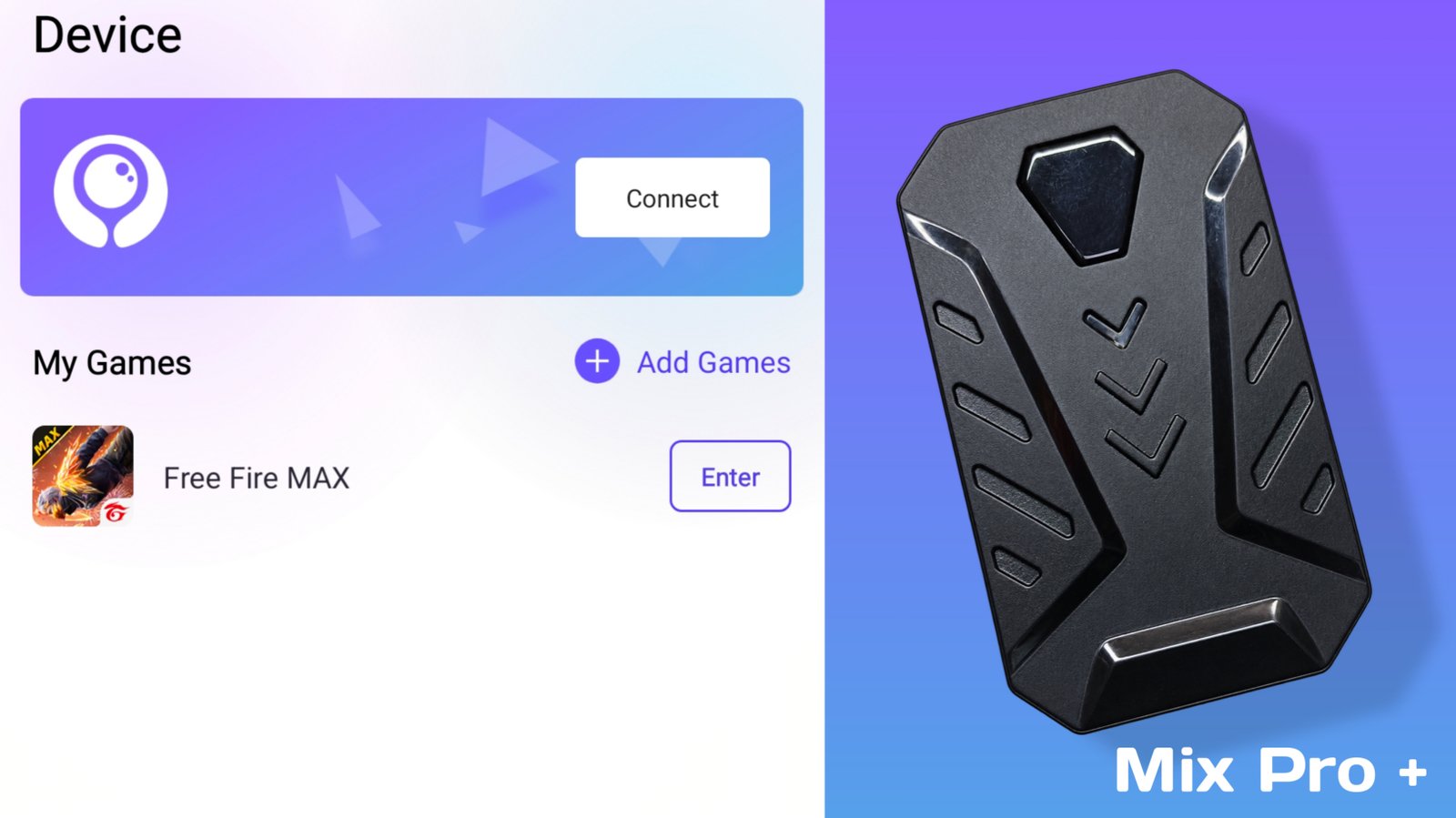
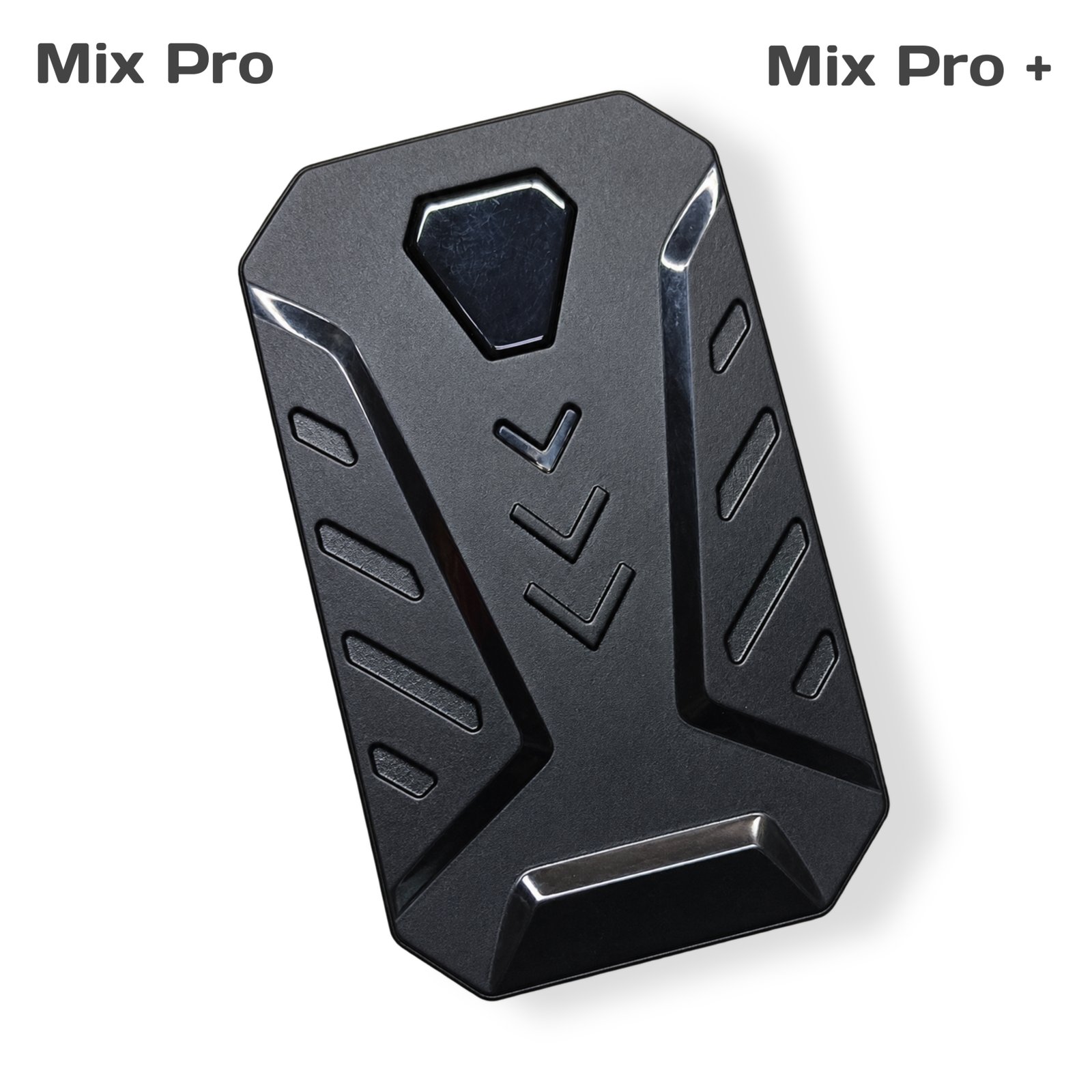
Mix Pro Converter
Mix Pro Converter is a gaming converter designed to help connect a keyboard and mouse to compatible mobile devices. It works with supported keymapping apps and makes it easier to set up a PC-style gaming experience on your phone. The converter is simple to use and can be a useful option for players who prefer keyboard and mouse controls. It also works with apps like Geek Gamer and MooWii Gaming for supported setups.
What makes it different. A Mix Pro Converter connects your keyboard and mouse to your mobile device for supported games. It helps translate your inputs so they work properly during gameplay.
Connection order. Always connect in the same order: keyboard and mouse into the converter first, then the converter into the phone, then open the companion application. Connecting in a different order is the most common reason a device is not detected.
Activation. The Mix Pro Converter and its companion app do not require any separate activation. Once the converter is connected and the app is set up, you can configure your keymapping and start using it for supported games.
Troubleshooting. Power with 5V/2A and select the correct mode (e.g., Ctrl+F1 for Android, Ctrl+F4 for Wired). Resolve connection or lag issues by restarting or reinstalling the keymapper app. Ensure your iOS version is below 13.4