Best Sensitivity Guide
Finding the right sensitivity can make your keyboard and mouse gameplay much smoother. In this guide, you’ll learn how to adjust your sensitivity for better aim, smoother movement, and more comfortable controls. We’ll also cover simple settings you can try and adjust based on your own playstyle.
Maximize In-Game Sensitivity: Set your in-game general sensitivity to 200 (or around 180 if you are a beginner) and the Red Dot to 150+ to ensure your character can turn and react with the speed required for competitive play.
Match Polling Rate to RAM: Adjust your mouse polling rate in your keymapping app based on your device's performance; use 125Hz for 4GB RAM and 250Hz–500Hz for 8GB RAM to maintain smooth movement and avoid stuttering.
Use a Mouse Pad: Always use a dedicated mouse pad (or even a piece of cloth) to provide a consistent surface, which prevents the "auto-high sensitivity" glitch where the cursor moves uncontrollably fast.
Fine-Tune X and Y Axis: In advanced keymapping apps like Panda Mouse Pro or GG Mouse Pro, separately adjust the X (horizontal) and Y (vertical) sensitivity (e.g., 50 for X and 55 for Y) to find the perfect balance for both 180-degree turns and easier drag headshots.
Reduce Key Response Delay: Access the settings for individual keymapped keys and reduce the response delay from the default (often 50) down to 2; this ensures that actions like reloading or firing happen almost instantly, mimicking a high-end PC experience.
Recoil: Most recoil control comes from a steady downward pull, which is only repeatable when sensitivity stays constant. Never change it in the middle of a session.
Common Keyboard and Mouse Problems
Common keyboard and mouse problems can happen while setting up or using them for mobile gaming. Sometimes the devices may disconnect, stop responding, lag, or behave unexpectedly during gameplay. This guide covers the most common issues and simple ways to fix them, so you can get your setup working properly and enjoy a smoother gaming experience.
Joystick Sticking and Glitches: Move the joystick mapping icon to the upper half of the screen and significantly reduce its size to prevent it from conflicting with other screen inputs,
Aim Drifting and Sensitivity Spikes: Use a physical mouse pad (or a smooth cloth) to provide a consistent tracking surface and toggle the mouse cursor (hide and show) frequently during the match to reset the pointer.
Input Delay (Latency): Use a high-quality wired USB hub or OTG adapter instead of Bluetooth, and consider using gaming-grade peripherals which offer faster response times.
Sluggish Key Actions: Open your mapping app's key settings and lower the "response delay" (often set to 50 by default) down to 2 for each key to ensure actions happen immediatel.
Difficult Aim Control: Go into your app settings and separately adjust the X (horizontal) and Y (vertical) sensitivity until you find a balance that feels smooth for both turning and aimin.
Overlay disappears. Battery optimisation closed the app. Set it to unrestricted and lock it in recents.
Keyboard and Mouse Not Working (Fix Guide)
Keyboard and mouse not working is a common problem while setting up mobile gaming. Sometimes the devices may not connect properly, stop responding, or suddenly stop working during gameplay. In this guide, you’ll find simple and practical ways to check the connection, fix common issues, and get your keyboard and mouse working again.
Peripherals Not Detected: Ensure your OTG adapter or USB hub is firmly connected; a loose connection is a frequent cause of the setup "not working"
. Using a wired connection over Bluetooth is also recommended to eliminate pairing failures.
Mapping Button Disappearing: This is often due to the app being closed by the system's battery optimization; ensure the mapping app (like K2er or GG Mouse Pro) has "Display over other apps" permission enabled and restart the device if pairing fails.
App Shows "Not Activated": On Android 11 and above, some keymapping apps require an activation process using Wireless Debugging to work properly during gameplay. If the app becomes deactivated, your keyboard and mouse may stop responding in the game. Before playing, check that your keymapping app is still activated and working correctly.
Uncontrolled Aim (Auto-Dragging): The high sensitivity issue can sometimes be fixed by turning the mouse cursor off and on again during the match. This helps refresh the mouse movement and can make the controls feel normal again.
Character Stuck or Joystick Not Moving: Delete the existing joystick icon in your mapping app and add a new "WASD" direction key, placing it in the upper half of the screen at a reduced size to prevent conflicts with other on-screen touch points.
Setup Again: If your keyboard, mouse, or any part of the setup is not working, unplug everything and restart your phone. Once the phone turns on, reconnect all the devices properly and try again. This simple restart can often fix connection issues and get your setup working again.
Does Battery Drain While Gaming?
Battery drain can occur during long mobile gaming sessions, especially when using a keyboard, mouse, and other connected devices. However, with a properly connected setup, the additional battery usage is generally considered negligible for normal gaming. Using a suitable hub or converter can also help maintain stable power for connected devices. For longer sessions, keeping your phone charged can help avoid interruptions and provide a smoother gaming experience.
Why Activation Is Needed ?
Activation is needed for some keymapping apps to work properly during mobile gaming. It allows the app to stay active and work with your keyboard and mouse while you play. Without proper activation, the keymapping may stop working or the keyboard and mouse may not respond inside the game. In this guide, you’ll understand why activation is required, when it needs to be repeated, and how it helps keep your gaming setup working smoothly.
Who Requires Activation ? Keymapping apps such as GG Mouse Pro, K2er, Panda Mouse Pro, and similar apps may require activation to work properly on mobile. Activation enables the app to function during gameplay and helps your keyboard and mouse work with supported games, giving you a more PC-style gaming experience on mobile.
Want to activate →
Why Mobilador X Prefers Wireless Activation Over Other Methods
Mobilador X prefers Wireless Activation because it provides a simple, convenient, and straightforward way to activate supported keymapping apps. Once the initial setup is completed, the process becomes easy to repeat whenever activation is needed, without making the overall setup complicated. In many cases, you do not need a PC or another phone for regular activation. If your phone is restarted, you may only need to complete a few steps again to restore the activation. This makes Wireless Activation a practical option for users who want a smooth setup with fewer difficulties and a more comfortable gaming journey.
No PC needed: Wireless Activation can be completed without using a PC. This makes the setup more convenient and easier to manage for mobile gamers.
Easy to Repeat: If your phone restarts, activation may need to be repeated. In most cases, only a few simple steps are needed to get the app active again.
Simple Process: Once you understand the activation steps, the process is easy to follow. It can help you get your keymapping app ready for gameplay without unnecessary complications.
Device compatibility
To play Free Fire with a keyboard and mouse, your device must meet specific hardware and software requirements to ensure the mapping apps and converters function correctly.
Required Android Versions: While older versions work, Android 11 and 12 are the current standards for "single-phone" activation, though some hardware like the Mix Pro may require additional steps to unlock touch on Android 12
.
Recommended: Android 11 or newer, because wireless debugging is built in and everything can be done from the phone.
Incompatible Processors: The Flydigi Q1, for example, does not natively support older MediaTek processors; users with these chips must switch the device to "Classic Mode" and perform a manual activation to get it to work
.
RAM and Performance: A minimum of 4GB RAM is required for stable play, but 8GB RAM is recommended to support higher mouse polling rates (250Hz–500Hz) without causing the game to lag or the movement to stutter
.
Physical Connection Needs (OTG & USB-C): You need a device with OTG (On-The-Go) support and a compatible USB-C or Micro-USB adapter; high-end phones like the Oppo Reno series are frequently used because they handle the power requirements of a USB hub effectively.
Why Geek Gamer and MooWii Gaming Do Not Need Activation
Geek Gamer and MooWii Gaming do not require separate activation when used with compatible converters such as Mix Pro or Flydigi Q1. The converter manages the connection between your keyboard, mouse, and mobile device, making the setup simple and easy to use. Both apps can also support Bluetooth connectivity on compatible setups, giving you more flexibility when connecting your devices. Overall, they offer a straightforward plug-and-play experience without a separate activation process.
External Hardware Support: These apps act as a interface for physical converters that manage your keyboard and mouse signals outside of the phone's system.
Direct Mode Feature: Many devices have a "direct mode" switch that lets you plug in your gear and start playing immediately without any complex software setup.
Simple Pairing Methods: They use standard Bluetooth or wired connections to link your gear to the phone, which the system can recognize easily.
Lightweight Utility Design: These apps are simple tools focused only on connecting your gear reliably rather than adding complex features that would require special permissions.
Pricing: Converters like Mix Pro, M1 Pro, and Flydigi Q1 are paid products that need to be purchased separately. Keymapping apps such as GG Mouse Pro and K2er are available for free on the Play Store, while Panda Mouse Pro is a paid app.
What is Macro in Gaming ?
Macros are a feature that lets you assign multiple actions to a single button press. This can make certain actions quicker and easier during gameplay. Macro support depends on the keymapping app or converter you use, as some setups include this feature while others do not.
Definition: A macro lets you do multiple actions with just one key. Instead of pressing different buttons one by one, you press one key and the actions happen automatically.
Common Uses of Macro
Fast Gloo Wall (Crouch + Place): This is one of the most commonly used macros. For example, you can assign the “G” key to both Gloo Wall and Crouch. When you press G, both actions happen at the same time, letting your character crouch and place the Gloo Wall quickly.
Fast Emote: To use an emote with a single key, choose any key in a keymapping app such as GG Mouse Pro, K2er, and other supported Converters. Place that key over the emote button in the game, then press the assigned key to use the emote easily.
Macro Support by App and Converters
Keymapping Apps: GG Mouse Pro, K2er, and Panda Mouse Pro all support macro features, allowing you to assign multiple actions to a single key. This can make certain controls easier to manage and help you perform multiple actions with a single button press during gameplay.
Converters: Mix Pro Converter, M1 Pro, and Flydigi Q1 also support macro features on compatible setups. These converters let you assign multiple actions to a single key, making certain controls easier and more convenient during gameplay.
Does Keyboard and Mouse Gaming Affect the Device?
Using a keyboard and mouse for mobile gaming generally does not cause any major effect on the phone when the setup is connected and used properly. The main thing you may notice during longer gaming sessions is some extra battery usage or a little more heat, depending on the game and connected devices. These effects are usually normal and manageable. Keeping the device properly connected and avoiding excessive heat during long sessions can help maintain a smooth gaming experience.
Is Keyboard and Mouse Gaming Secure ?
Keyboard and mouse gaming is generally safe when you use trusted keymapping apps, compatible converters, and proper settings. The setup itself does not normally harm your phone or your personal data. However, always download apps from reliable sources and avoid unknown software or suspicious files. Using a stable and properly connected setup can help you enjoy mobile gaming safely and smoothly.
Phone Safety: Keyboard and mouse gaming is generally safe for your phone when everything is connected properly. Avoid excessive heat and use compatible accessories.
Device Protection: Using reliable accessories and proper connections helps prevent unnecessary issues. There is normally no major risk to the phone from the setup itself.
Data Safety: The setup itself does not normally affect your personal data. Use trusted apps and avoid unknown or modified software.
Heat Management: Long gaming sessions can make the phone warm, especially with demanding games. Keep your device in a well-ventilated place and take breaks when needed.
Safe Apps: Use keymapping apps from trusted sources and check their compatibility before installing them. Avoid suspicious or unofficial versions.
iPhone Support
iPhones use iOS, which has stricter limits on how third-party apps can work with games and connected controls. Because of this, many Android-based keymapping apps are not available for iPhone. However, some compatible converters may support iOS and allow keyboard and mouse setups on supported devices and games.
iPhone Support for Keymapping Apps
Popular keymapping apps such as GG Mouse Pro, K2er, and Panda Mouse Pro are mainly designed for Android devices. Their keymapping features are generally not available on iPhone, so you cannot assume that the same setup will work on iOS. Before using any keymapping app on an iPhone, always check whether it officially supports iOS and your specific device.
iPhone Support for Converters
Some converters, including certain models of Mix Pro, M1 Pro, and Flydigi Q1, may support iPhone and iOS devices. However, support can vary depending on the exact converter model, iOS version, and game being used. For the best experience, check the converter's compatibility details before purchasing or connecting it to an iPhone.
Wishing from team Mobilador X
Email Support:
Email: contactmobiladorx01@gmail.com

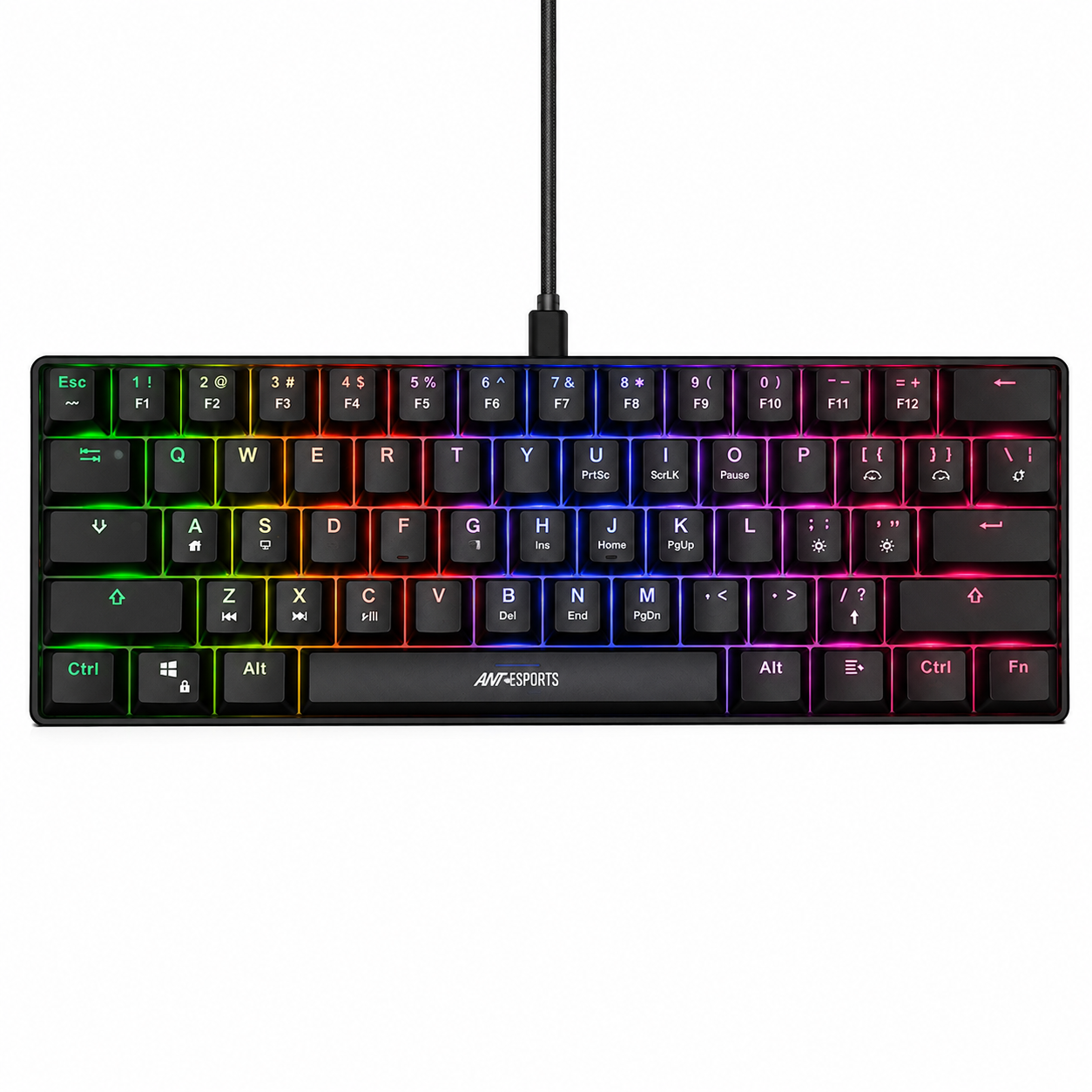
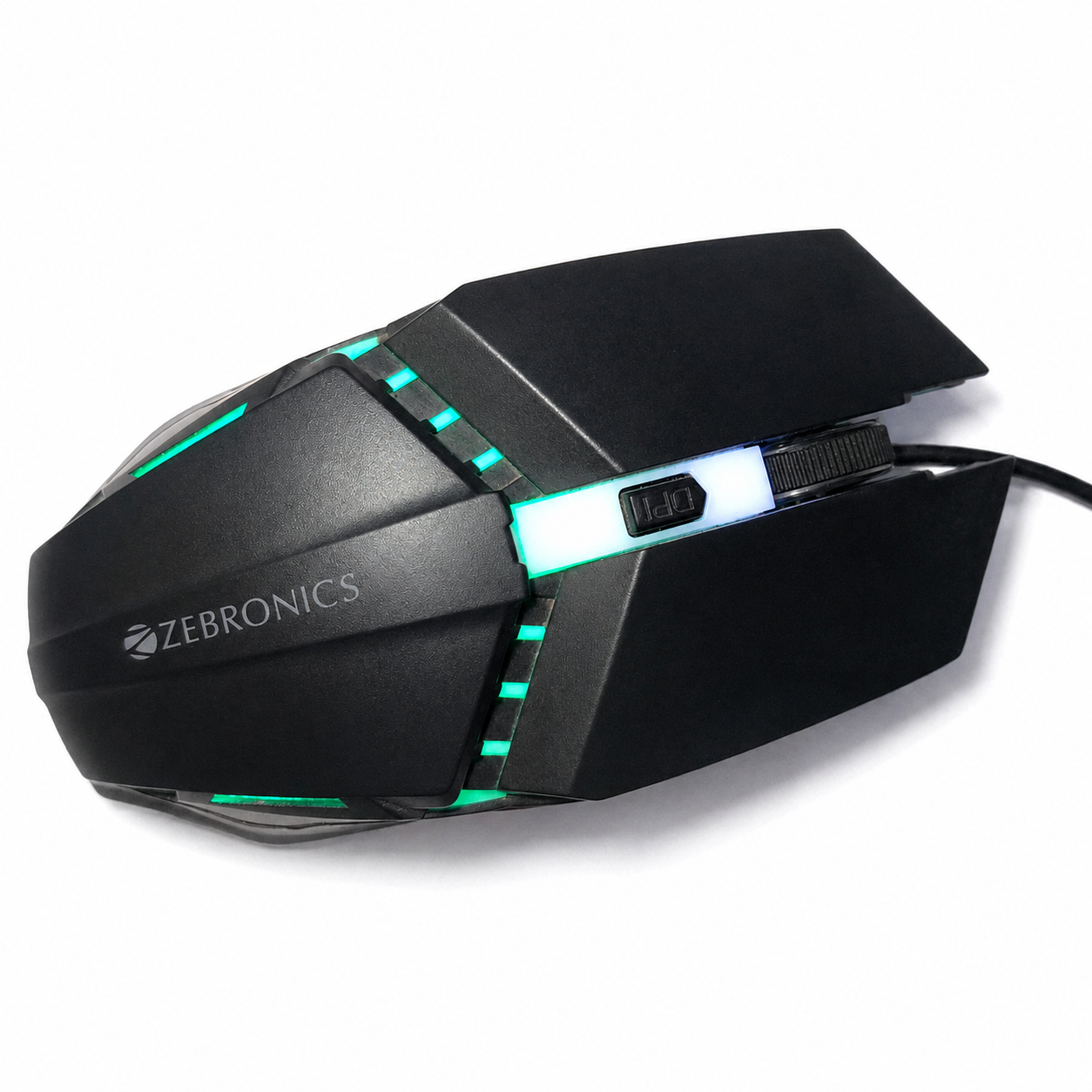
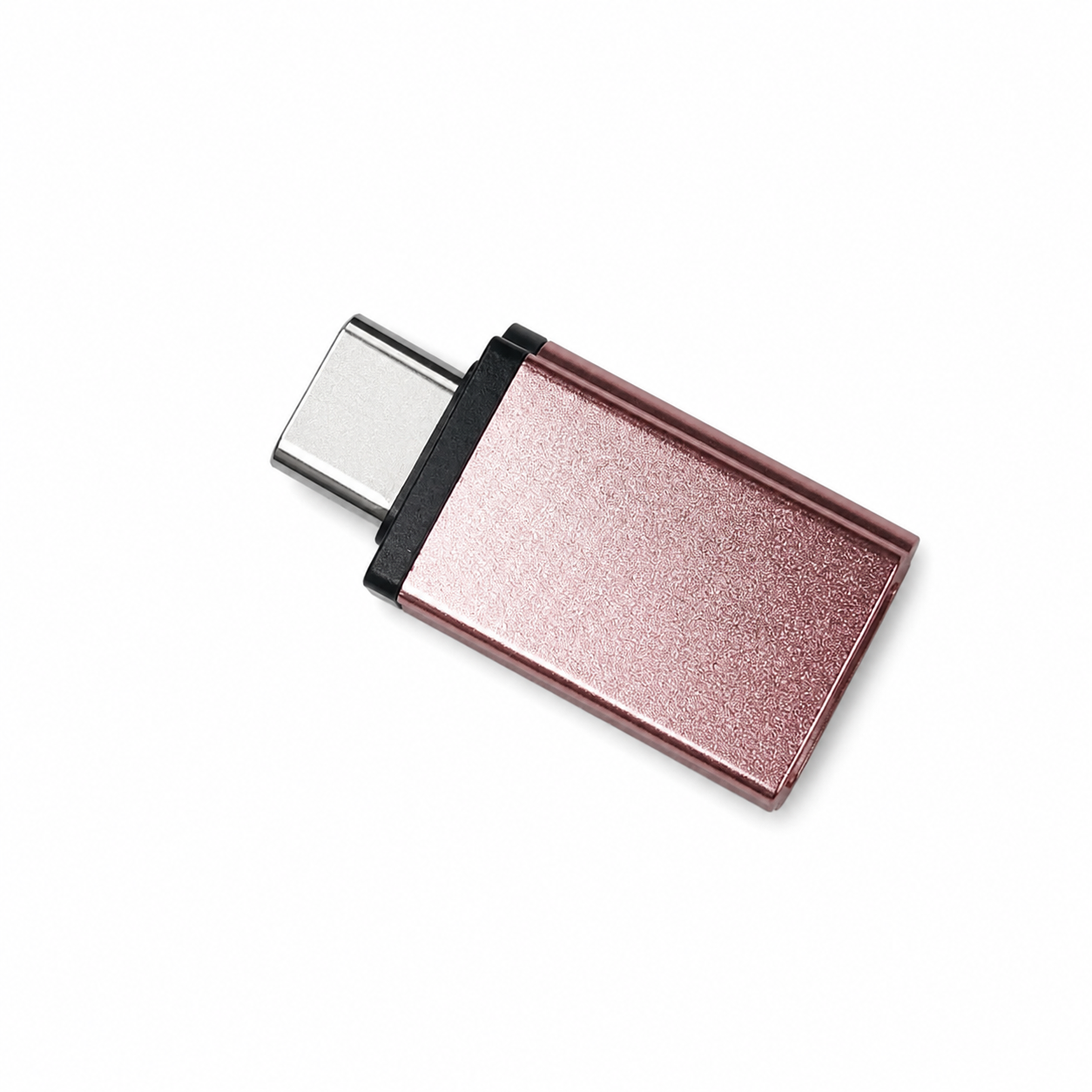

 Mouse Pad gives your mouse a smooth and consistent surface for better movement. A larger mouse pad also gives you more space for wider mouse movements, which can help make aiming easier and more comfortable during gameplay.